tilauscope_fork
Labels and QR
!!! abstract “Artisan does / TilauScope adds” Artisan does — nothing here. Artisan has no concept of a printed label or a scannable record.
**TilauScope adds** — printed labels for a roast, a coffee or a storage sack, each
carrying a QR code, and two ways to scan one back open: a webcam in BeanCave, or a
phone's own camera.
Labels are covered here as objects that get printed and scanned. What a sack label tracks — the pool of ids, assigning and releasing one — is covered in Sacks, stock and conservation.
What each label carries
| Label | Printed from | What it shows | Its QR opens |
|---|---|---|---|
| Roast label | The Roasts tab → Export → Label (PDF) or Print label, or the result form at the end of a roast → 🏷 Label PDF | Bean, origin, roast date, key roast figures, flavour notes, a QR | The roast’s record |
| Green bean label | A coffee’s record → Print label | Supplier, crop, process, variety, altitude, moisture, water activity, cupping notes, a QR | The coffee’s record |
| Sack label | The sack labels tool (see Sacks, stock and conservation) | A label id and a QR — nothing else | Whichever coffee currently holds that id |
| Coffee label | TilauScope → Print a Coffee Label… | Whatever is typed in: name, roaster, origin, process, roast level, roast date, weight, tasting notes | Nothing — it carries no QR |
Roast and bean labels print as a PDF sized to the label itself — 10×15 cm by default, or 7×9 cm for a compact pochette, set once in Configuration → 🖨 Printing — so any printer set to print at 100% (no “fit to page”) puts it straight onto a sleeve of that size, no cutting needed. Sack labels print directly to a Niimbot thermal printer, sized for its 50×30 mm roll.
In the Roasts tab, select a roast and choose Export → Label (PDF), then choose where to save it. The label uses that roast’s saved data and linked coffee, independently of the curve preview.
A roast label can be printed the moment the roast ends, from the result form itself, without waiting for the roast to be filed — it uses the roasted weight and colour just entered, so the weight loss and colour on the label are the ones being recorded. Printing changes nothing in the record: the form can still be corrected and printed again, or abandoned. If the form is saved without a label having been printed, TilauScope asks once whether to print one before closing.
When the coffee is a blend, both the roast label and the green bean label carry a blend chip followed by its composition: each component with its share, or its name alone when no share is recorded.
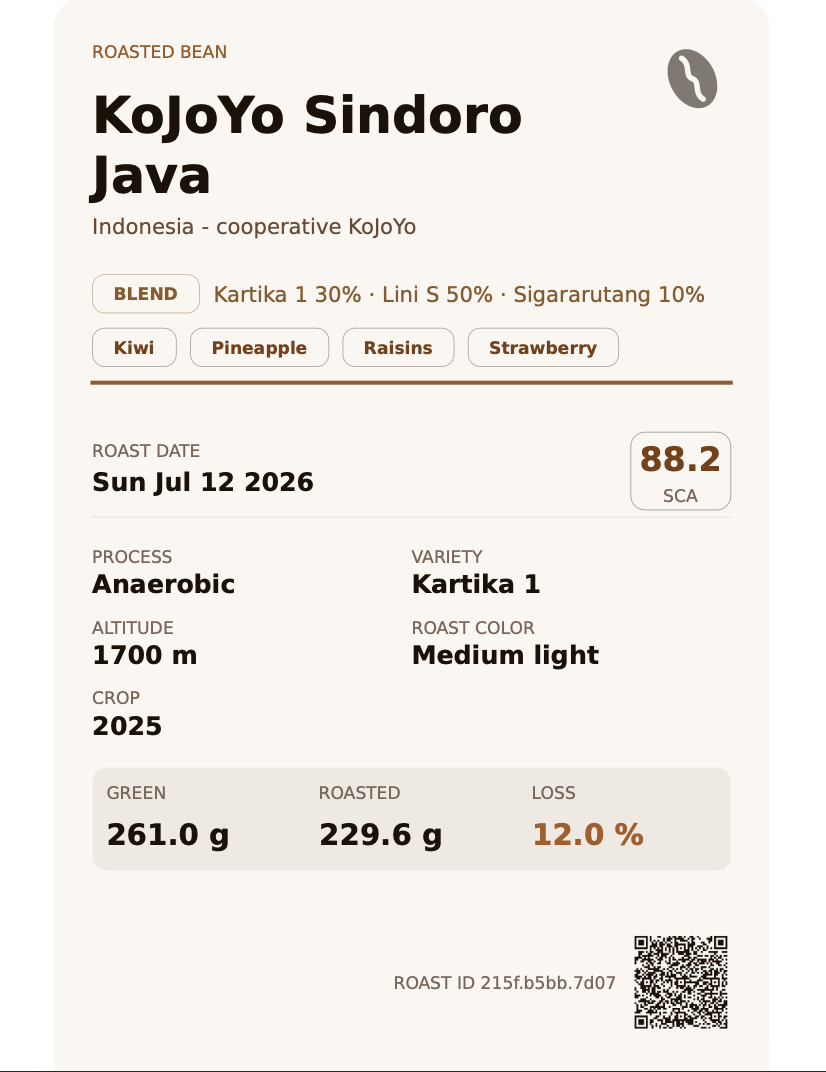
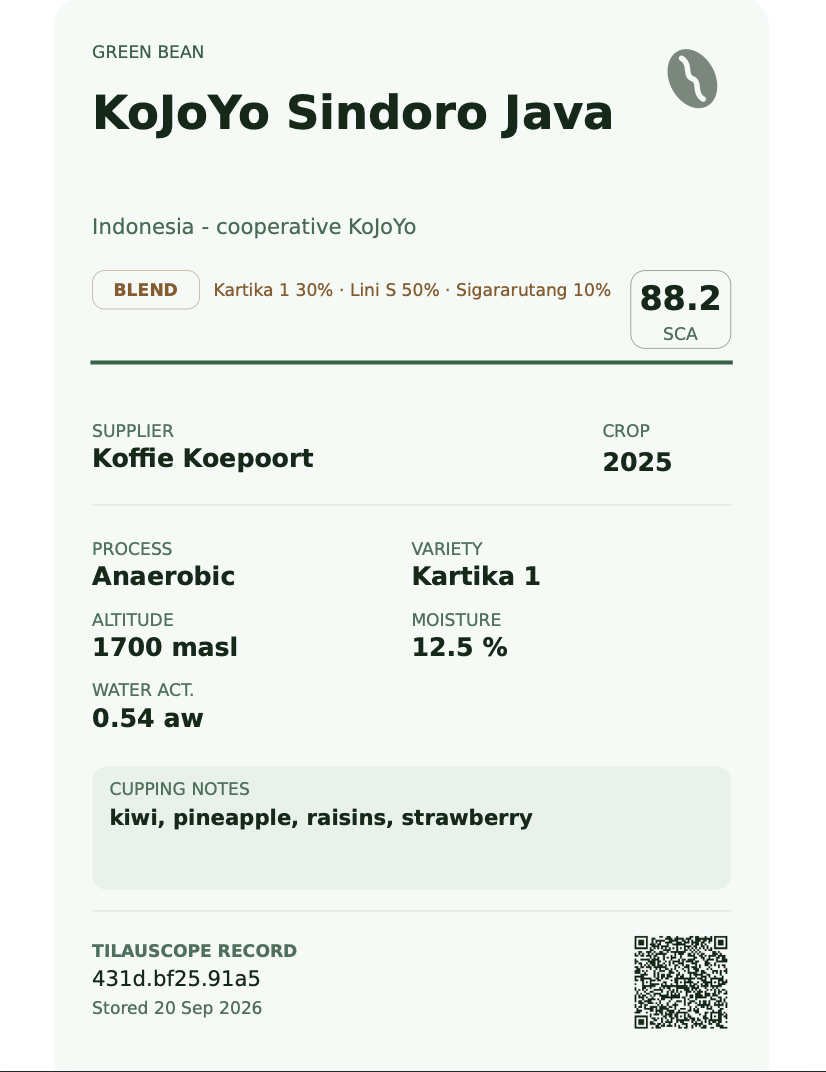
Printing on the Niimbot
Roast labels can also print directly to a paired Niimbot thermal printer, in two sizes: a full spec sheet on an 80 mm roll, or a condensed card on a 30 mm roll (small enough that the QR is dropped — there is no room to make it useful at that size). Sack labels and labels for a bought coffee always use the 30 mm roll.
🖨 Print label opens a preview with a copies count, then prints in the background. The label is sent to the printer once, whatever the count, and the printer puts the copies out one by one. Printing is refused, with a plain explanation rather than a silent failure, when the roll is out of labels, when the loaded paper isn’t recognised, when it doesn’t match the size the label needs, or while another label is still printing.
While BeanCave is open, the printer’s status keeps itself current: an open cover shows within a few seconds, and a printer that stops answering — switched off, or gone to sleep — shows Printer: Not responding — check it is on. Every print button stays unavailable until the printer answers again.
While a label is printing
Every print in TilauScope — a roast label, a recipe card, a batch of sack ids — reports the same way: a small pill in the corner of the window, described in While the app is working. The window stays usable throughout, and the printer’s own state stays where it always is, so a print never hides whether the printer is ready or how many labels are left on the roll.
A run of several labels counts them — 3 of 12 — and offers ✕, which stops the run after the label currently coming out: one already moving through the print head cannot be recalled. The pill then reports how many were actually printed, and only those count against the roll. Closing the window mid-run does the same thing: the run stops after that one label rather than carrying on for a window that is no longer there.
A finished print says so in the pill and disappears on its own; nothing has to be clicked away. A failed one turns red, names what to do, and stays until it is dismissed. The one message that still interrupts is the roll running low, because that is a change of paper to make before the next batch, not a result to read.
Now and then the printer receives a label but never reports it finished. The pill then turns red with Not confirmed — check the label: the label may have come out correctly, or blank. Look at it before printing again, so a good label is not printed twice; a run of several labels stops at that one. For a sack label, its number counts as used either way, so it can never end up on a second bag — if it came out blank, print it again from Reprint. A print that never reached the printer — no answer, or the cover open — stops before anything is sent, and says why.
!!! info “Hardware — Niimbot B21S” Printing needs a paired Niimbot B21S. The printer identifies its own paper roll automatically; recognising a roll it has never seen needs an internet connection the first time, after which that roll size is remembered.
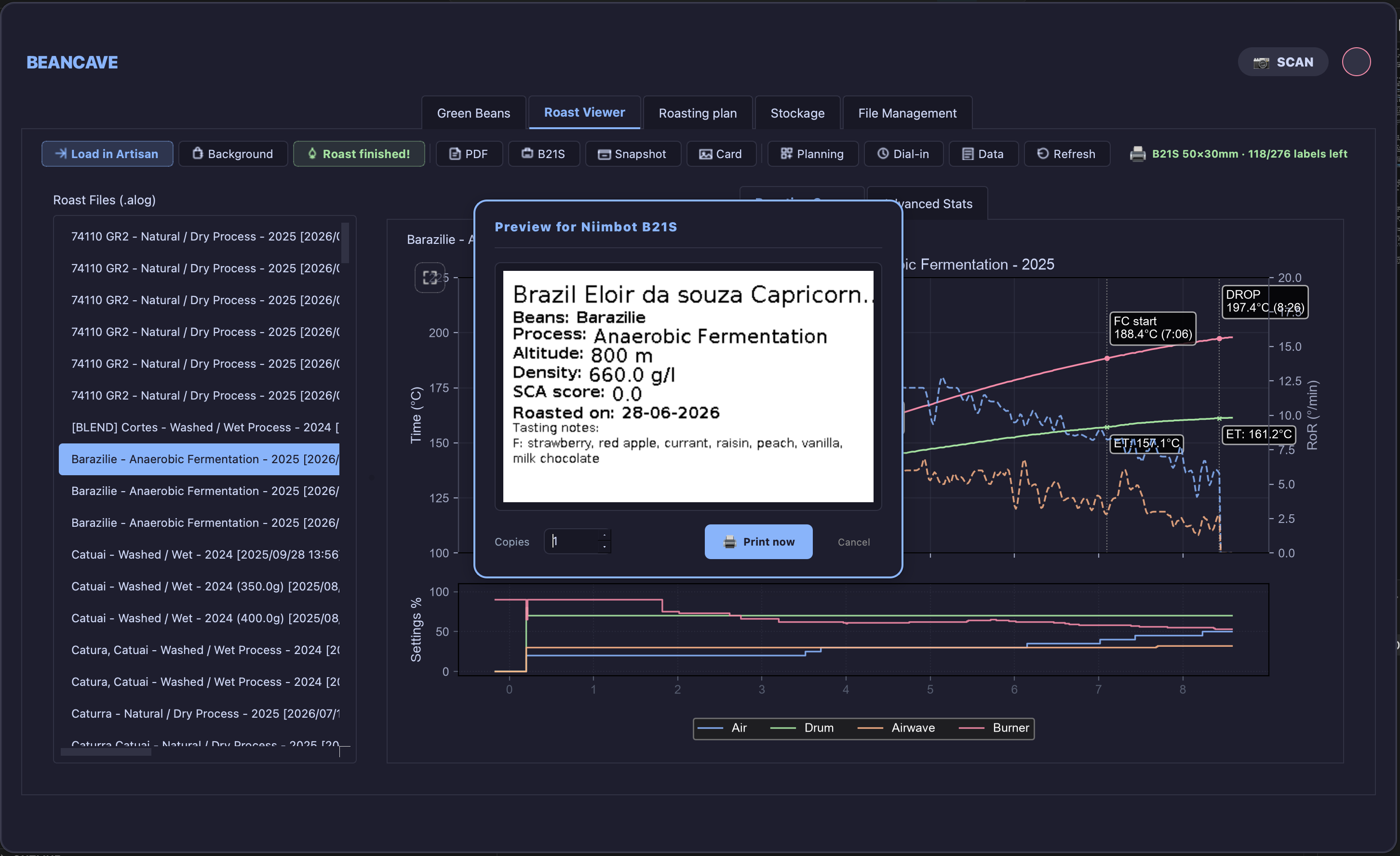
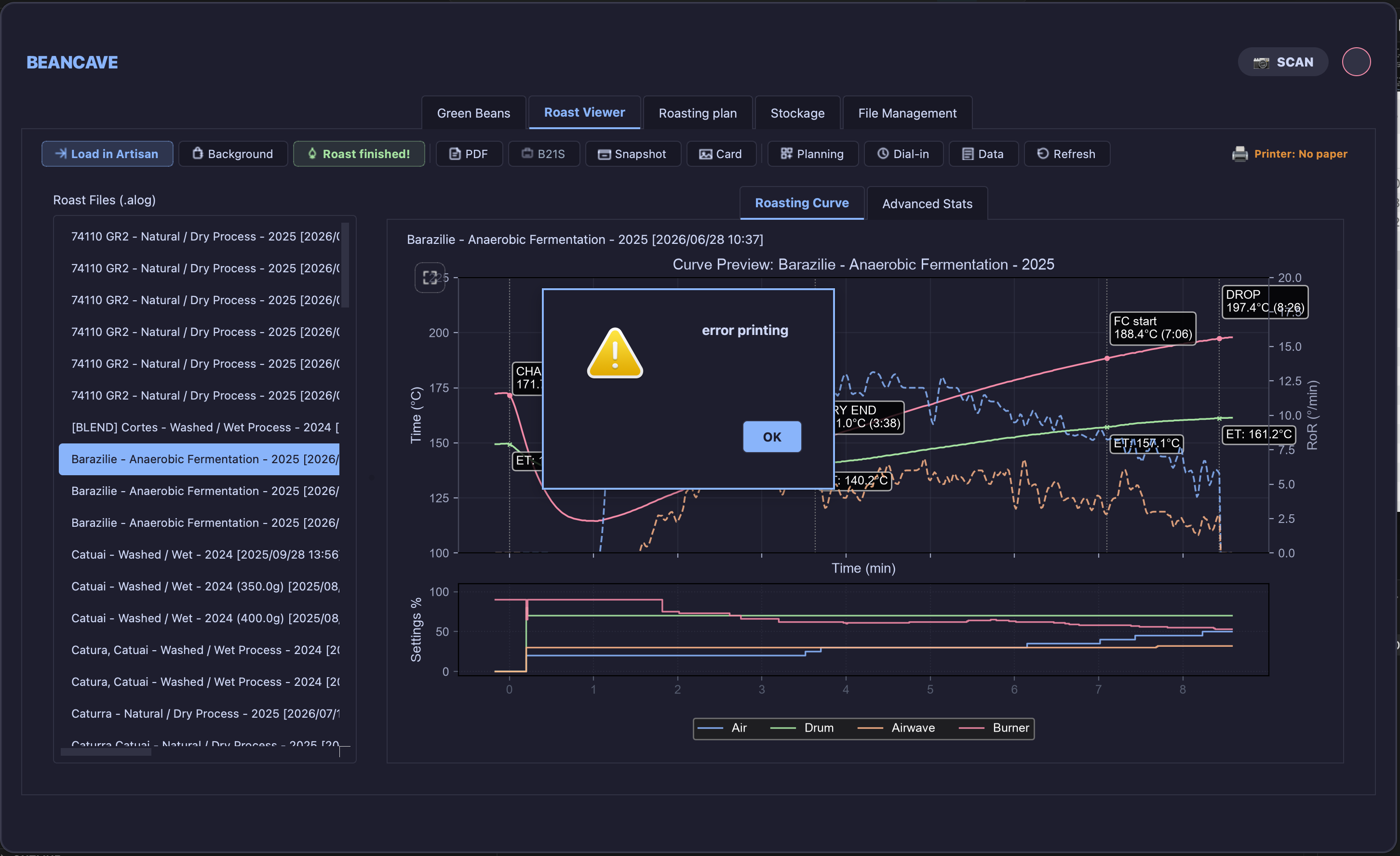
A label for a coffee bought already roasted
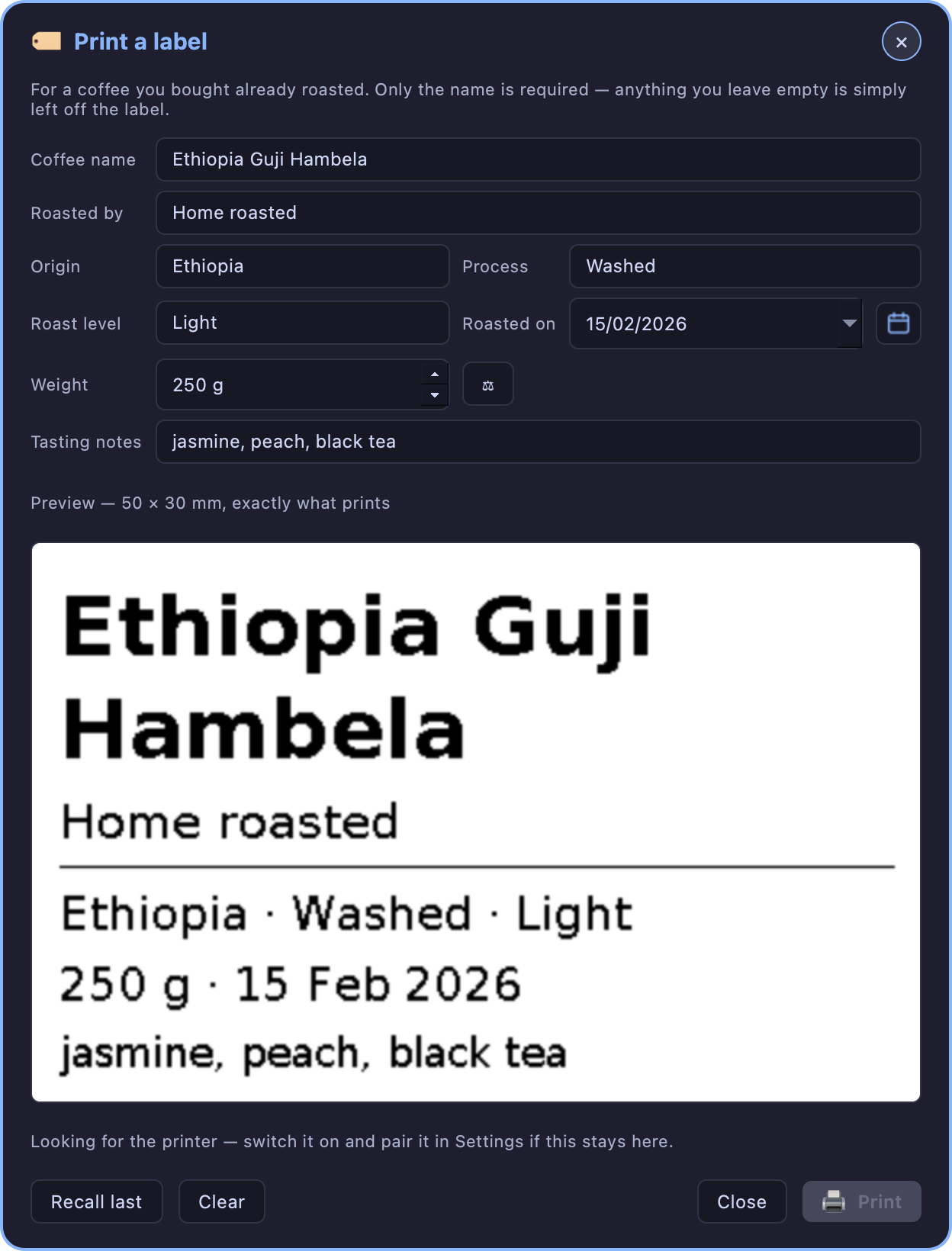
A bag bought from a roaster has no roast of its own to print from, and there is no reason to file it among the green coffees. TilauScope → Print a Coffee Label… opens a window where the label is simply typed out, and prints it on the Niimbot’s 50×30 mm roll.
Only the coffee name is required. Everything else — who roasted it, origin, process, roast level, roast date, weight, tasting notes — is optional, and anything left empty is left off the label rather than printed as a blank or a dash. The calendar button beside the date switches it off: struck through, the date is left off the label. The fewer fields are filled, the larger the remaining lines are set, so a bag labelled with a name and a weight reads from across the room.
The preview is the label itself, at print size and magnified: what is on screen is what comes out of the printer. It follows the typing, so nothing needs to be printed to be checked.
The window stays open after printing, with the fields still filled — several bags from the same lot are one click each. Clear empties the form for the next coffee, and Recall last brings back the label printed most recently, which survives closing the window and quitting the application. Nothing is added to the coffee catalogue: this label is printed and forgotten.
The ⚖ button beside the weight reads it straight off a paired scale, as every other weight field in TilauScope does.
What a label can spell
Labels print the text as it was typed. Accents and other marks are kept, and a name written in Greek, Cyrillic, Arabic, Hebrew, Chinese, Japanese, Korean or Vietnamese prints in its own script — Arabic, Persian and Hebrew read right to left, as they should. Earlier versions dropped accents and could leave a non-Latin name blank.
Thai is the one exception: it has no letterforms available and prints blank. Written in the Latin alphabet, a Thai coffee prints normally.
Scanning a label
A printed label can be opened back up two ways.
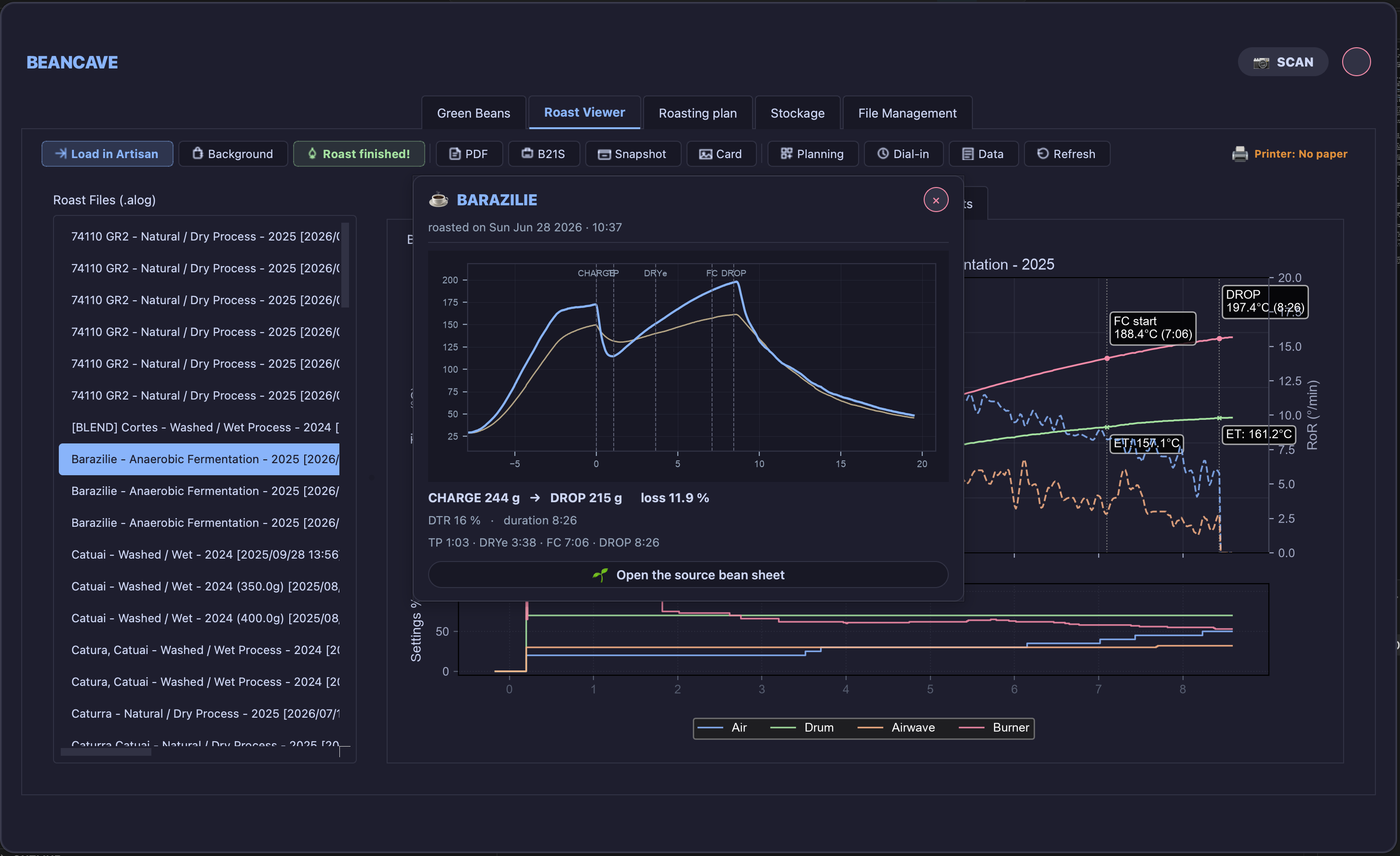
From BeanCave, with a webcam. 📷 SCAN opens a live camera preview; holding a label up to it decodes the QR and opens straight to what it points to — the roast card, or the coffee’s record. The camera runs only while this window is open, and stops the moment it closes.
From a phone, with its own camera app. No app or pairing is needed: the label’s QR is a plain web address. Opening it on a phone already on the same network as TilauScope shows the same record — bean details, or a roast’s curve, figures and tasting notes — as a page in the phone’s browser. This path has to be switched on first: tick Let a phone open records by scanning a label in Configuration and restart. Until then labels still print and the webcam scan above still works, but a phone scanning one reaches nothing.
!!! note The phone needs to be on the same local network as the computer running TilauScope. Off that network, the page simply doesn’t load — there is no remote access built into this feature.
A sack label works the same way as the other two: scanning it, from either path, opens whichever coffee currently holds that label. A label not currently attached to any coffee says so plainly rather than opening a blank or wrong record.
Next
- What a sack label tracks, and managing the pool of ids: see Sacks, stock and conservation.
- The coffee records these labels point to: see BeanCave.
- Any unfamiliar term: see the Glossary.