tilauscope_fork
Piloting from a phone
!!! abstract “Artisan does / TilauScope adds” Artisan does — nothing here. A roast is piloted from the computer, full stop.
**TilauScope adds** — an optional way to pair a phone and pilot the same roast from it:
the same sliders, the same milestones, the same start and stop, from wherever standing
at the machine is more convenient than standing at the screen.
This feature is off by default and needs turning on before it can be used at all — see Configuration → Remote access. Once enabled and the application restarted, everything below becomes available.
Pairing a phone
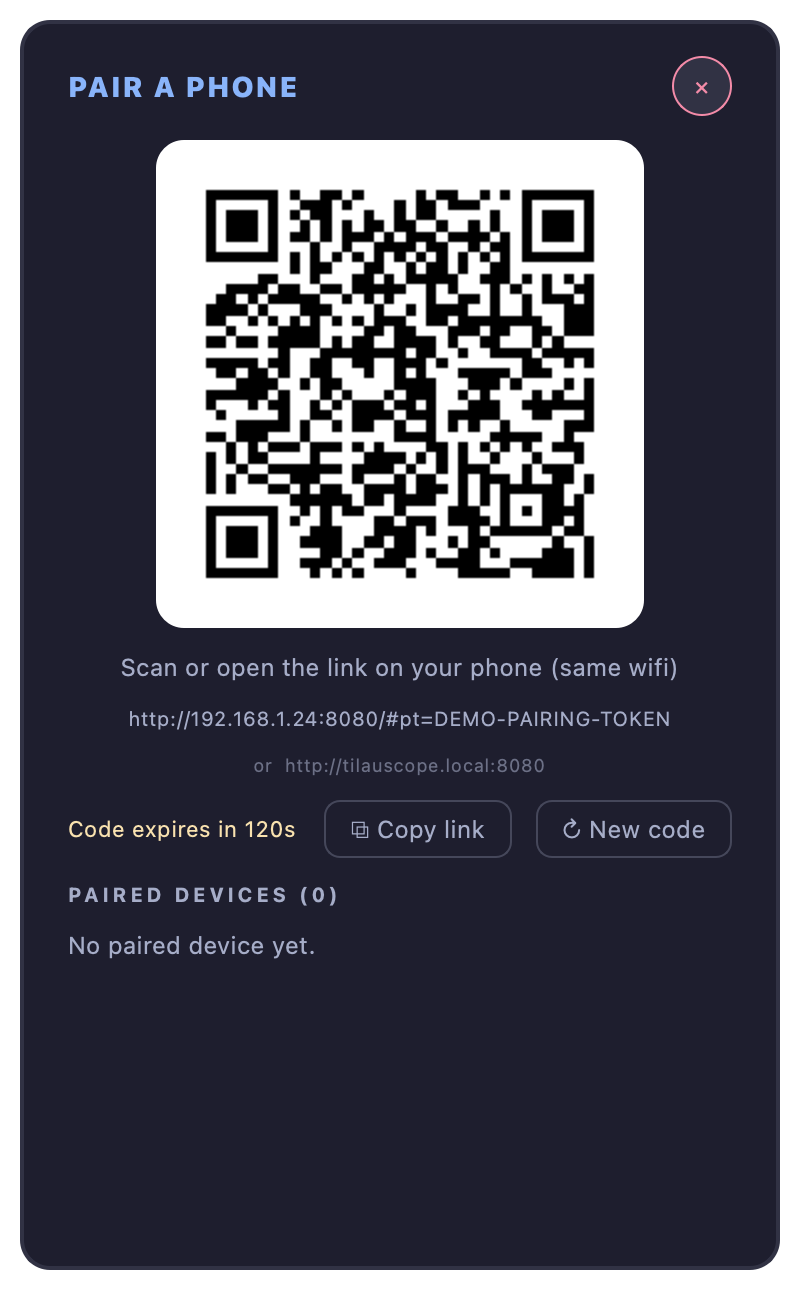
TilauScope Config → Remote access → Pair a phone… opens a QR code and a link, both valid for a short time — a fresh code is a tap away if it expires before it’s used.
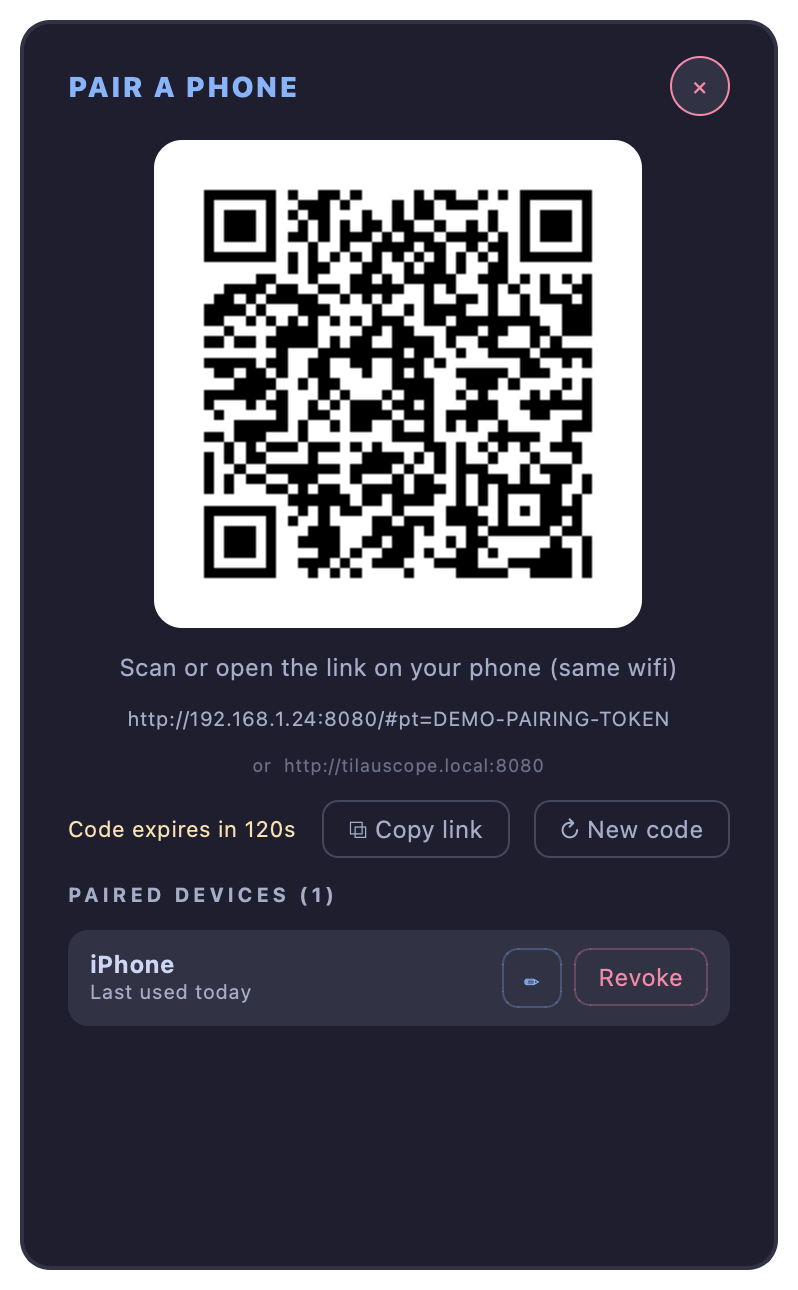
Opening that link on a phone, on the same network as the computer, pairs it: the phone shows up in the pairing dialog’s device list right away, named automatically from what kind of phone it is. Each entry says when that phone last connected, so the one you use every roast is easy to tell apart from one you have stopped using. From there it can be renamed, or revoked — revoking takes effect immediately, the next time that phone tries to reach TilauScope.
A phone that has not connected for a month stops being paired on its own and drops off the list. Nothing is lost: opening Pair a phone… and scanning the code again takes a few seconds. This is what keeps a phone you have sold, lost or simply forgotten from staying able to reach your roaster indefinitely.
A newly paired phone can watch the roast, but cannot yet steer it — see Taking control below.
!!! note “This is a trust-on-sight pairing, not a login” A phone pairs by being shown the code, once, on the same home network — there is no account and no password. That is deliberate: it is a convenience for piloting from across the room, not a way to control a roast from outside the house. Treat the pairing link the way you would a house key.
TilauScope enforces that rather than trusting it: a phone can only pair, connect or open
a record page **from an address on your own network**. Anything reaching the port from
elsewhere — a forwarded port on your router, a network that hands out public addresses —
is refused outright, whatever code or token it presents. Remote access through a VPN
service is refused on the same grounds.
Installing it as an app
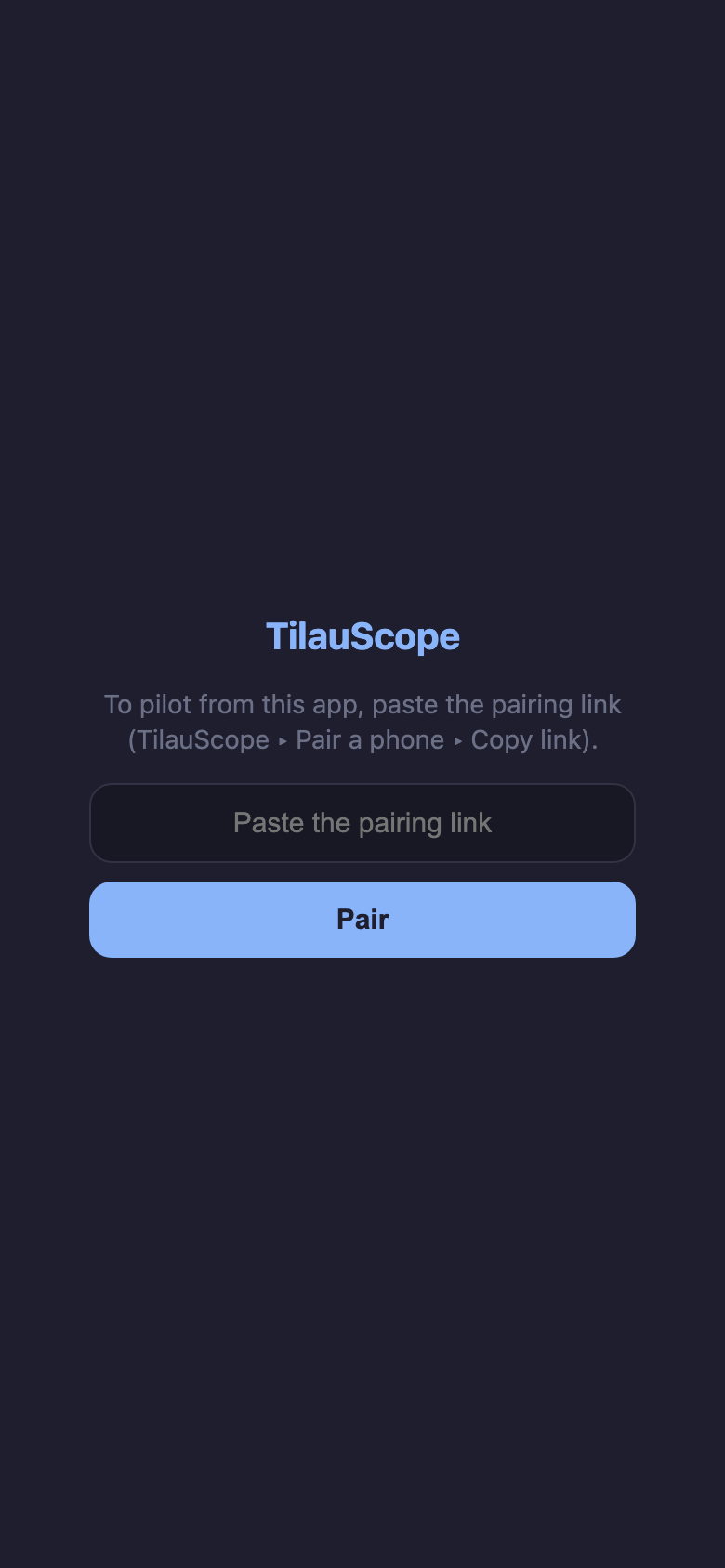
The phone screen can be added to the home screen like any other bookmark, and opens without a browser’s address bar around it once installed that way. On an iPhone, if the installed icon asks to paste a pairing link rather than reconnecting on its own, that is expected the first time — an installed home-screen app keeps its own separate pairing from the browser it was installed from. Copying the link again from Pair a phone… and pasting it in settles it permanently.
Taking control
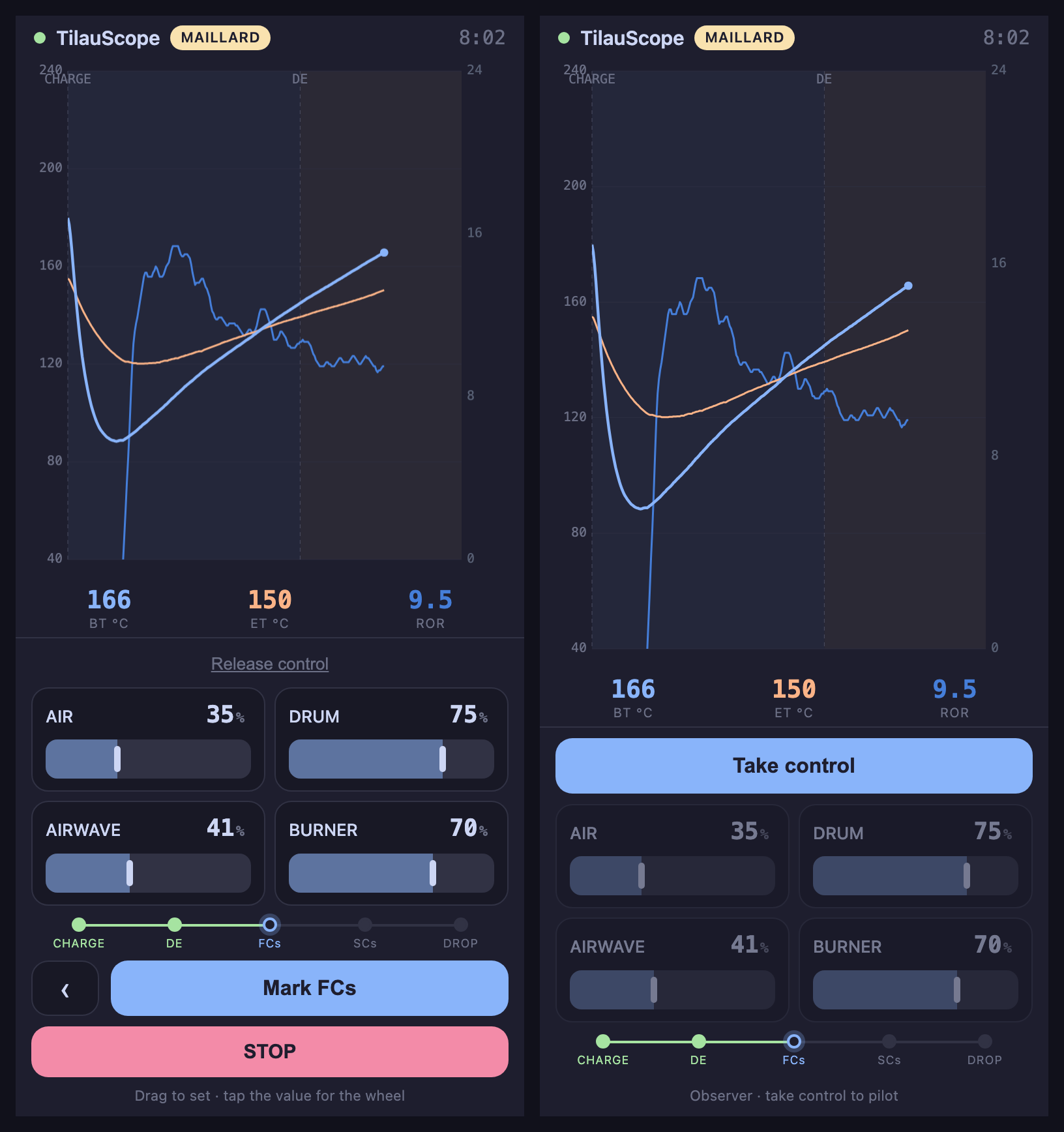
A paired phone starts as an observer: it sees the live curve and readouts, but every control is greyed out. Take control requests it.
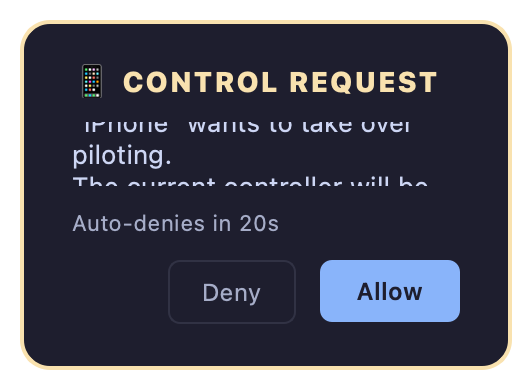
If nobody else is piloting, control passes immediately. If another phone already has it, the computer is asked to confirm the handover — ”’<phone>’ wants to take over piloting” — and the request is automatically declined if nobody answers within a few seconds. Piloting is never handed to a phone silently.
Release control hands it back to being an observer, so someone else can take it — or the computer can pilot the rest of the roast directly.
The curve
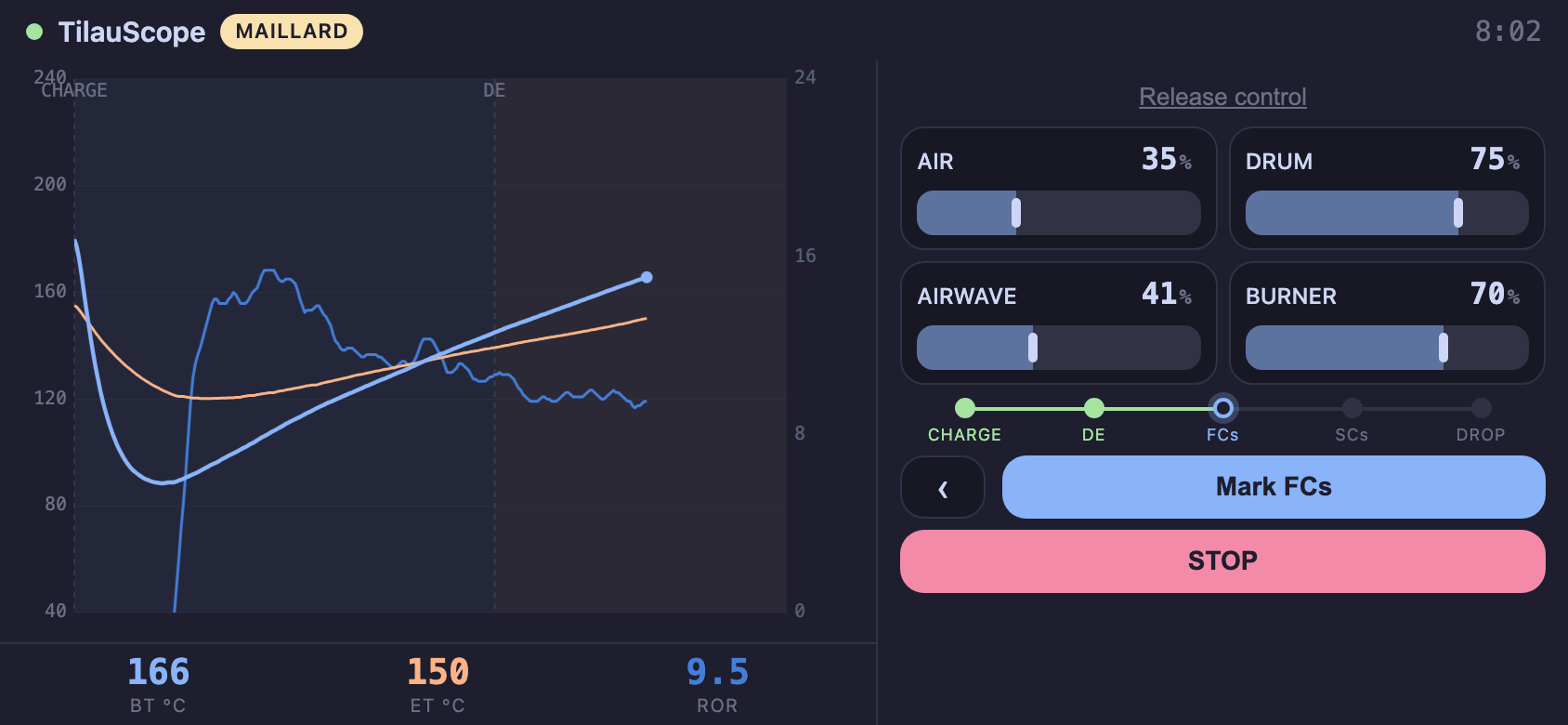
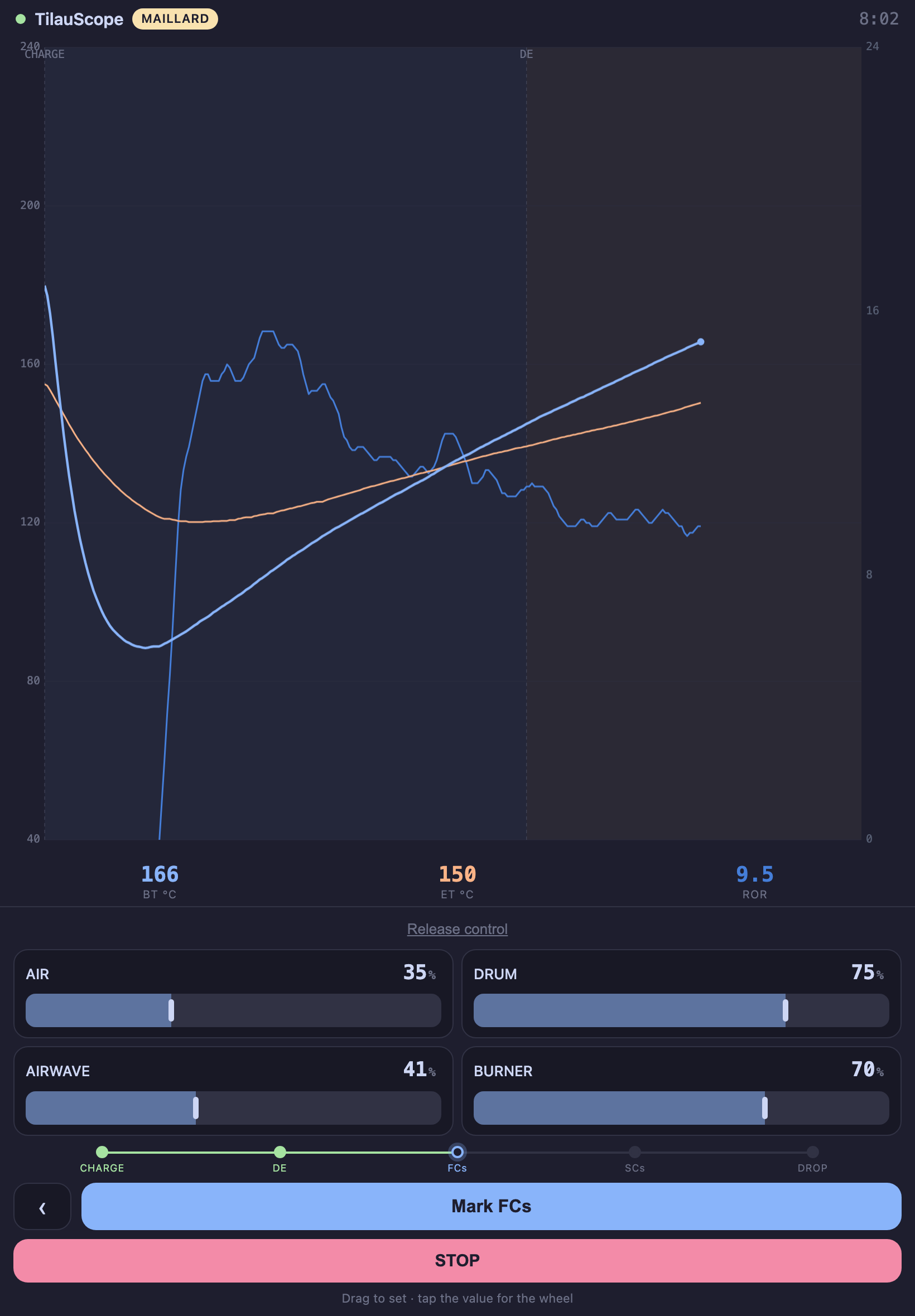
The phone draws the same graph as the computer, on the same scales: identical temperature and rate-of-rise bounds, identical gridlines, identical curve colours. A height read on the phone is the same height on the desktop, which is the point — a rate that looks like it is near the top of the frame has to mean the same thing on both screens.
Readings are shown in whichever temperature unit the application is set to, and labelled with it. Nothing is converted along the way: the phone displays the computer’s own figures.
Controls
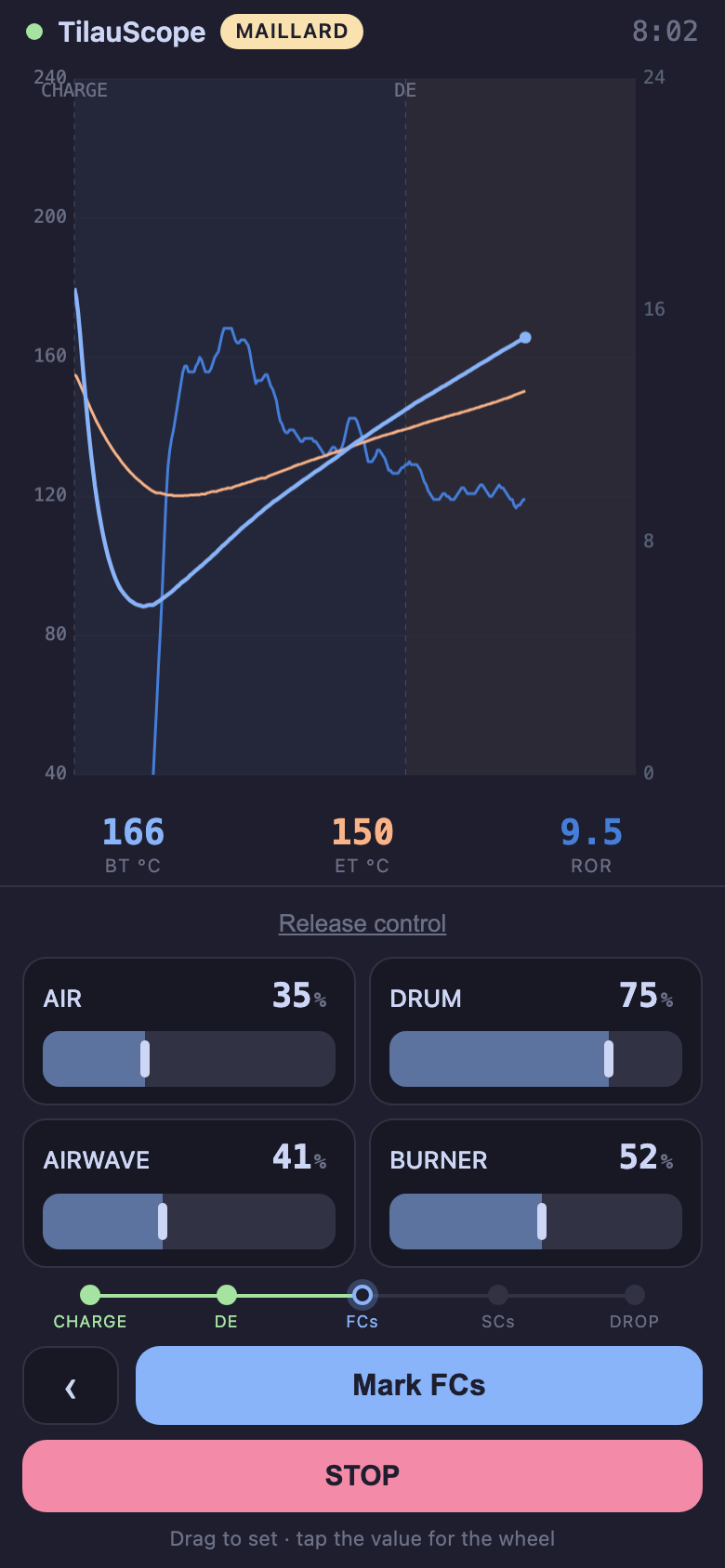
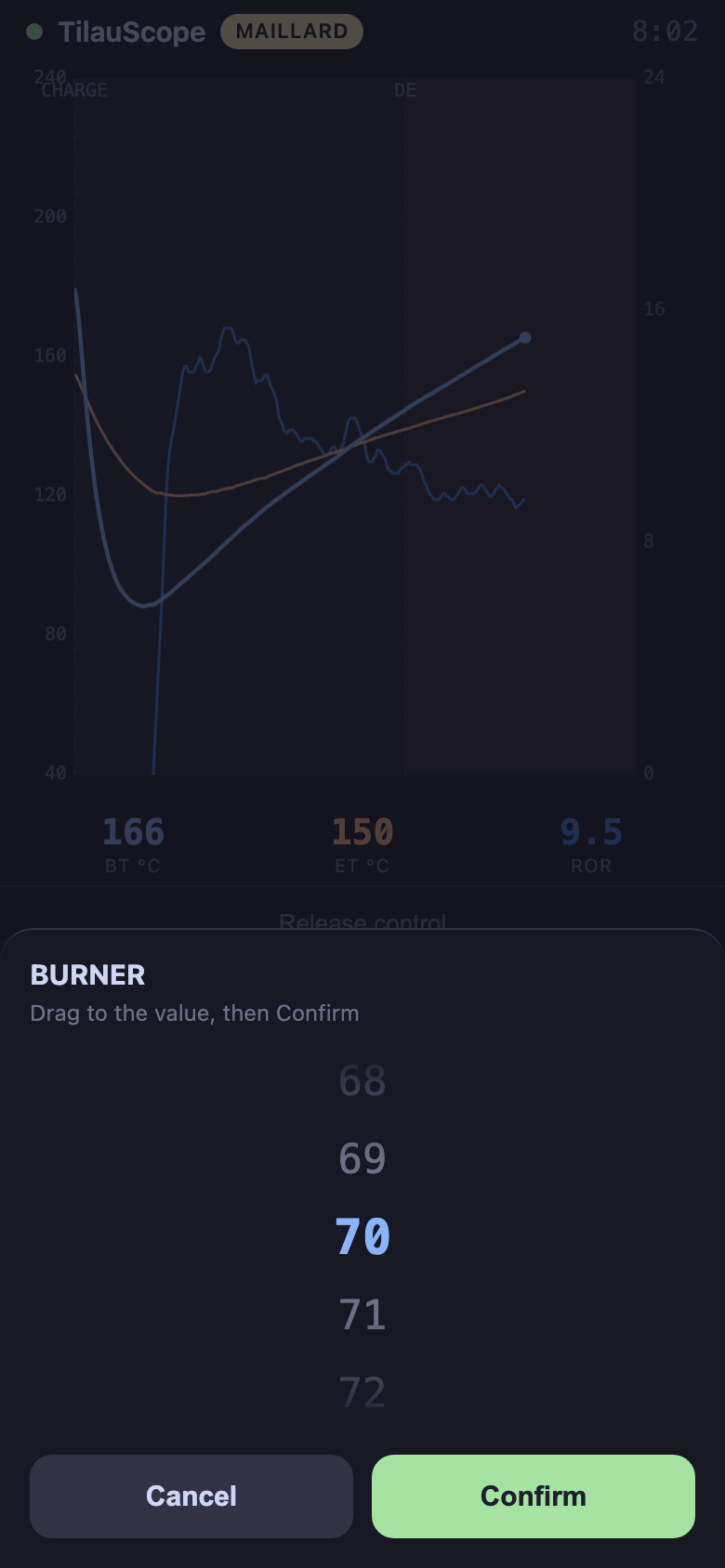
Whichever sliders are visible on the desktop appear on the phone, in the same order, with the same labels and the same limits — hide one on the desktop and it disappears from the phone too. The list is read afresh each time a phone connects, so a control renamed, re-bounded or hidden between two connections arrives correct rather than as it stood when the application started. Dragging a bar moves it live on the phone; letting go is what actually sends the change. Tapping the value instead opens a scrollable picker, for landing on an exact number rather than a drag.
If the machine clamps or rounds a value on its way through, the phone’s bar snaps to what was actually applied — unless a finger is still on it, so a correction never fights a live drag.
Milestones
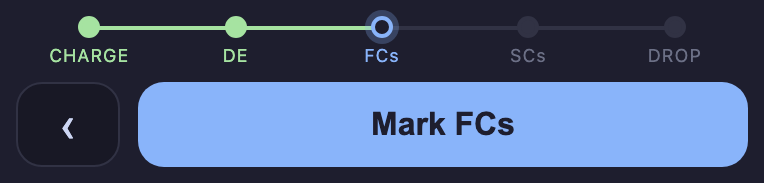
Rather than a fixed row of buttons, the phone shows where the roast stands in its own sequence: a line of dots for CHARGE, dry end, first crack and DROP, each filled in once marked. One big button always offers to mark whichever comes next; a smaller one undoes the last mark, if it was placed by mistake. Both stay disabled until recording has actually started — there is nothing yet to attach a milestone to before then.
Starting and stopping
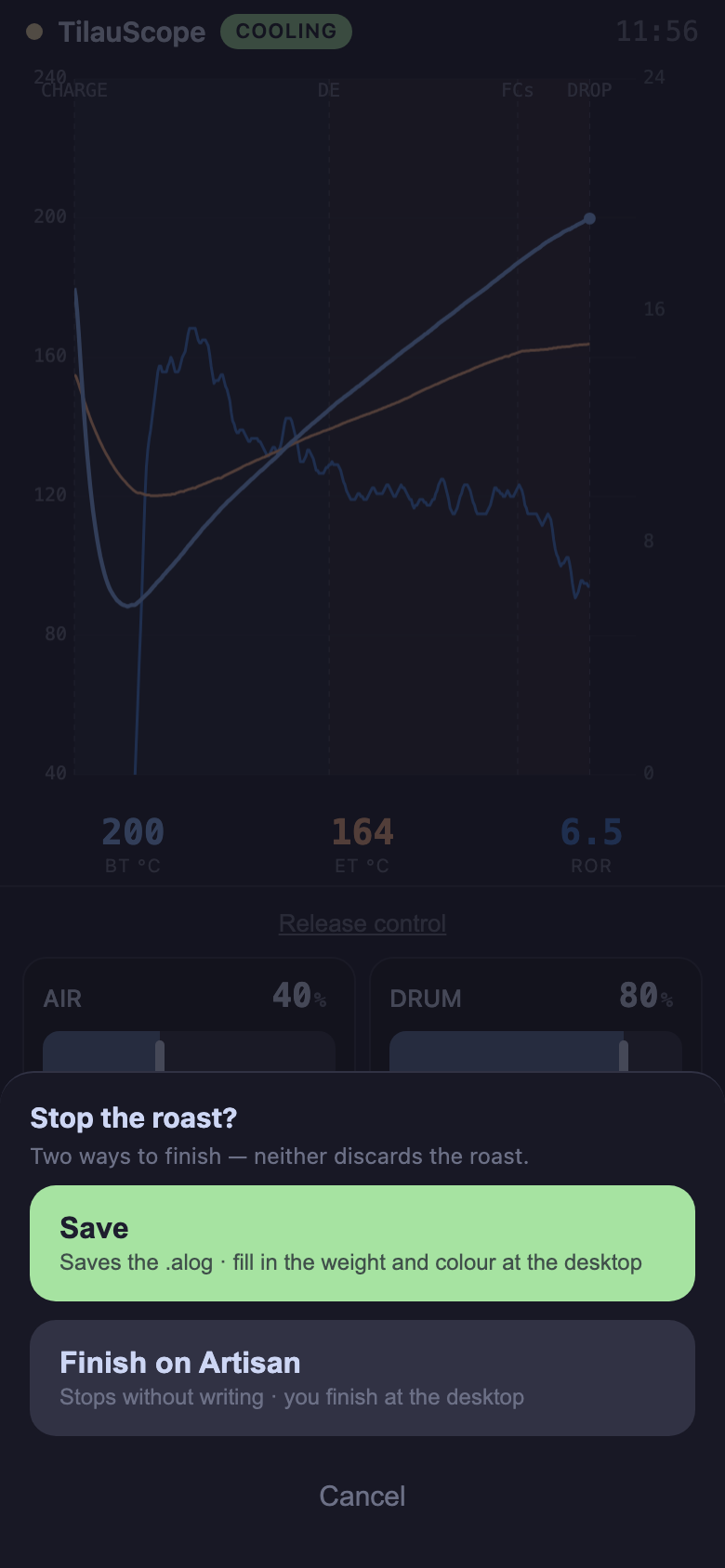
Start recording begins the roast exactly as pressing the button on the desktop would. Once recording, the same button turns into STOP, and stopping opens a choice rather than ending the roast outright:
- Save — ends and saves the roast. Available only once CHARGE and DROP are both marked.
- Finish on Artisan — ends the recording without saving, leaving the roast on the desktop screen to be completed there — weight, colour and notes still need entering at the computer either way; see After the roast.
Neither choice discards anything. There is no way to discard a roast from the phone.
If the connection drops
Losing the connection does not hand control to anyone else right away. For about ten seconds, the phone that was piloting keeps its hold on the machine — nothing moves on its own, and nobody else can take over — while it tries to reconnect. The screen shows this plainly: a frozen view of the last known readings, a Reconnect button, and, for the phone that was in control, a countdown of how long its hold still has left.
If it reconnects within that window, piloting resumes exactly as it was, with no need to request control again. If it doesn’t, the hold is released and control is free for whoever asks for it next — the roast itself is never affected either way, since the machine simply stops receiving new instructions rather than doing anything unexpected.
An observer phone that loses connection sees a plainer message — the roast carries on regardless, since it was never the one steering it.
!!! note A phone showing “view frozen” when monitoring has simply been turned off at the desktop is a different, unrelated message from the one above — that one means nothing is currently being measured, not that the connection was lost.
Landscape and tablets
Turning the phone sideways moves the curve and the controls side by side instead of stacked. On a large-enough screen — a tablet, held in landscape — the same layout also shows an extra reading (the gap between BT and ET) that a phone screen leaves out for space. On a machine without an air probe, neither ET nor that gap is shown.
Next
- Turning the feature on and its port setting: see Configuration.
- What happens at the end of a roast either way it was stopped: see After the roast.
- Any unfamiliar term: see the Glossary.