tilauscope_fork
Getting started
!!! abstract “Artisan does / TilauScope adds” Artisan does — records and plots your roast, and exposes every setting it has: devices, probes, sliders, alarms, themes. Configuring it is your job, and there is a lot of it.
**TilauScope adds** — a first-run wizard that gets you roasting without touching
Artisan's settings, a single menu for everything the fork adds, and one button that
switches the whole interface between a guided layout and a full expert layout.
At launch, TilauScope opens directly as the main roasting window, and it is the application: closing it closes TilauScope. The Artisan window it is built on stays behind it and is not something you need to visit.
The TilauScope menu
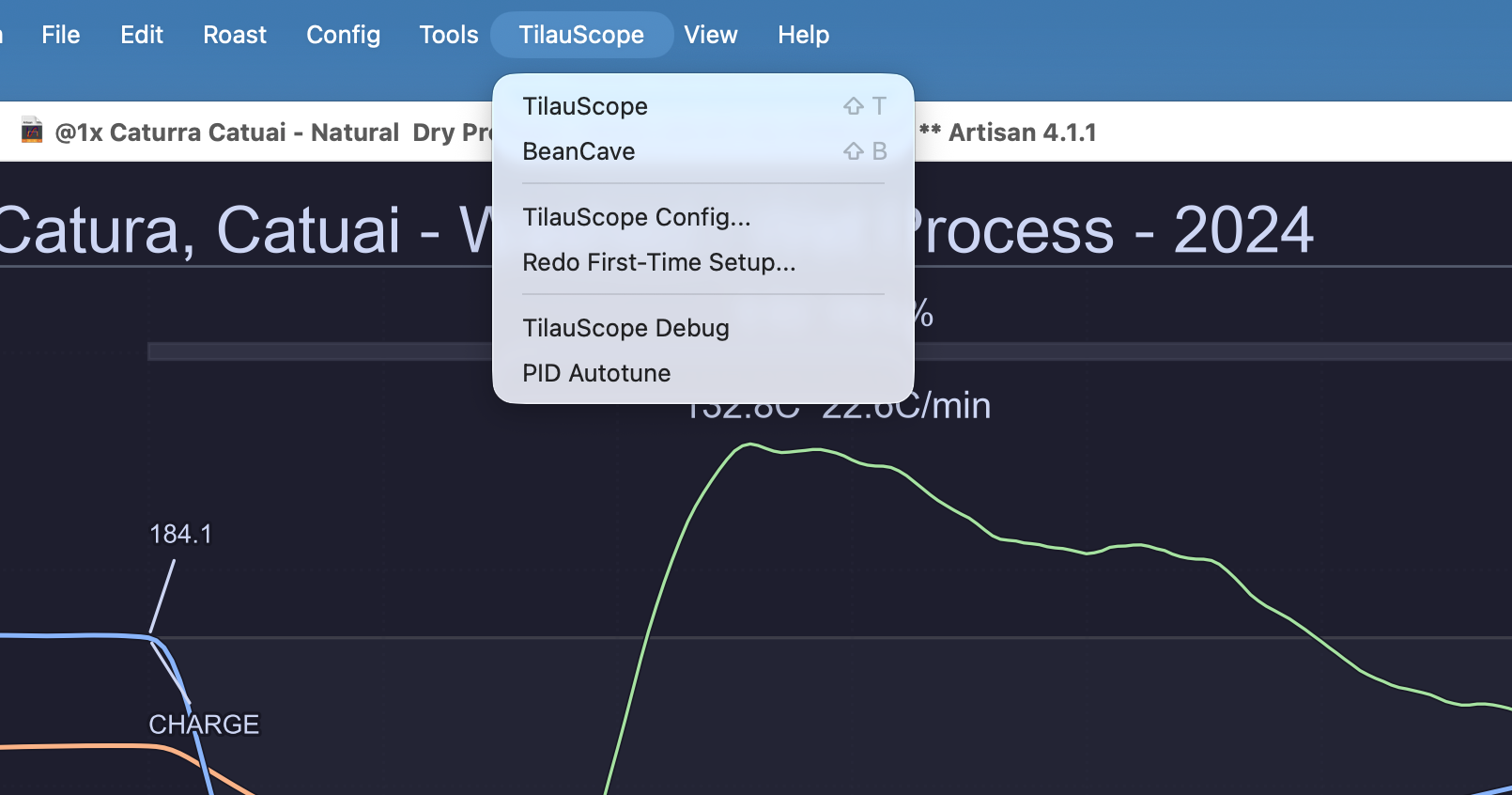
Everything the fork adds is grouped under a single menu, rather than being spread across Artisan’s own menus.
TilauScope in the menu bar gives you:
| Entry | What it does |
|---|---|
| BeanCave | Opens the green-bean database. |
| Roast Profile Maintenance… | Lists and repairs saved roast files. |
| Custom button management… | Arranges the buttons you press during a roast — see The TilauScope window. |
| TilauScope Config… | All fork settings, in four tabs. |
| Redo First-Time Setup… | Replays the first-run wizard. |
Version and bug reports
About TilauScope lives where your system puts it: on macOS in the TilauScope menu beside the Apple logo, on Windows and Linux under Help.
It tells you which version and build you are running — the number to quote whenever you report a problem. It also credits Artisan Roaster Scope, the application TilauScope is built on, and links to the source code, which is public.
The same window has a Report a bug button. It gathers the application’s logs into a single archive and asks you where to save it, then offers to open the issue tracker so you can attach it. The archive is what makes a problem reproducible; a report without it usually cannot be acted on.

!!! note The same archive is also available from the Help menu, under Export Logs…, and from the green-bean database, under Export Logs. All three do exactly the same thing.
First-time setup
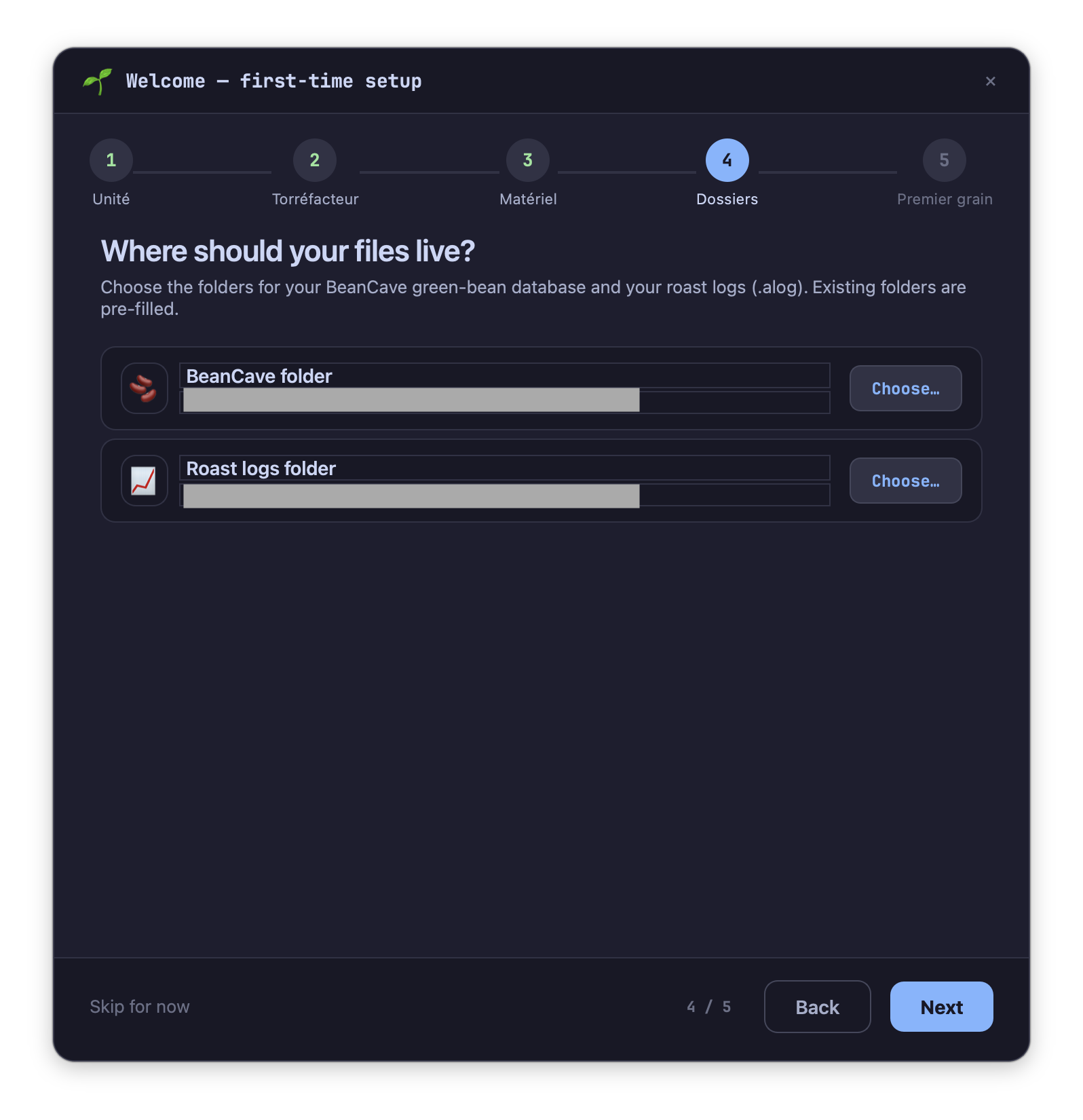
The first time you open BeanCave, a six-step wizard runs. It asks the handful of questions that actually change how the app behaves, applies everything at the end, and leaves Artisan’s remaining settings alone.
!!! note The wizard is triggered by opening BeanCave, not by opening TilauScope. If you never open BeanCave, you never see it — use TilauScope → Redo First-Time Setup… to run it on demand.
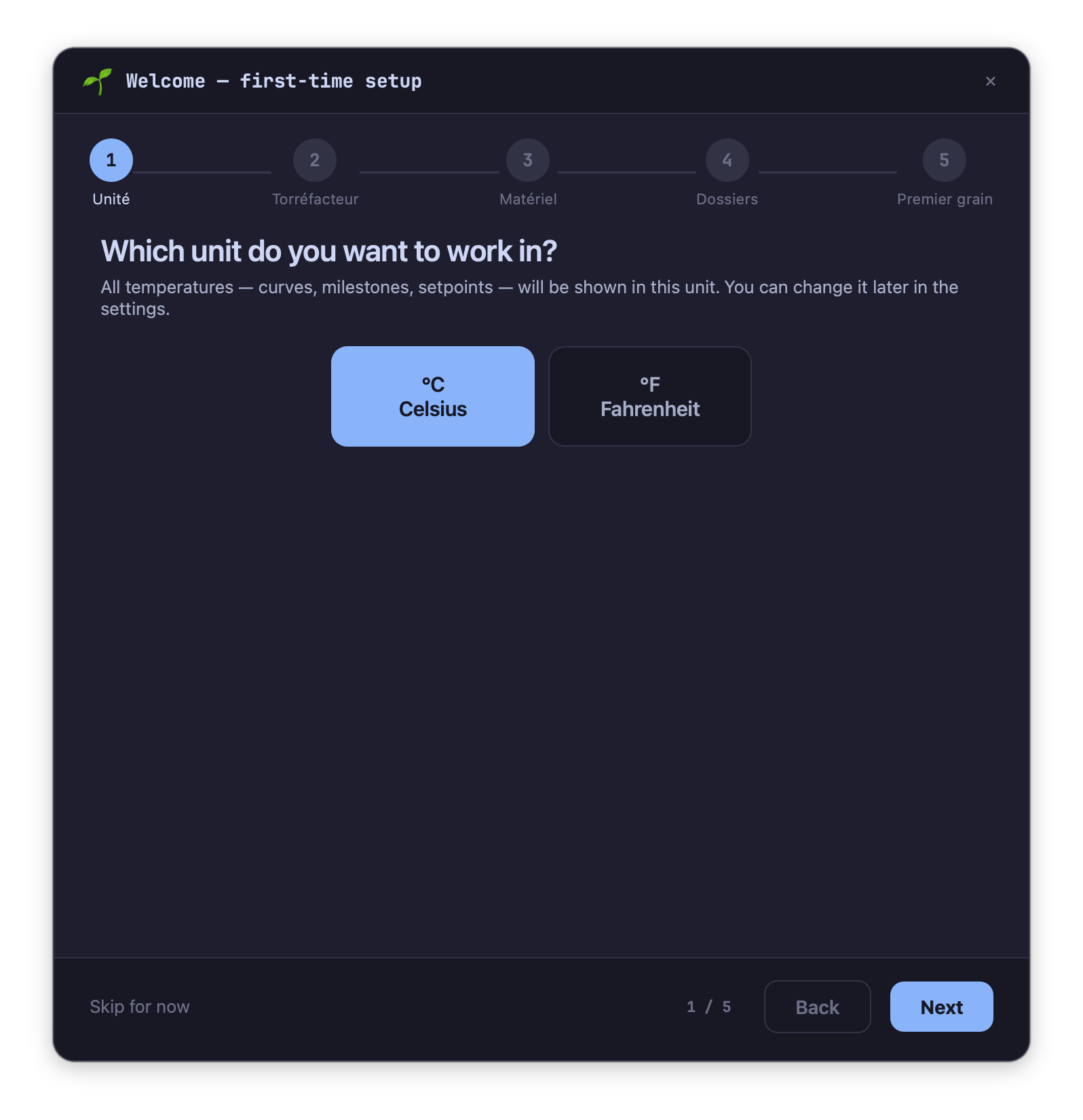
1. You. Who is roasting? Your name, printed on your roasts, and the temperature unit. Every temperature you will ever see — curves, milestones, setpoints — follows this unit.
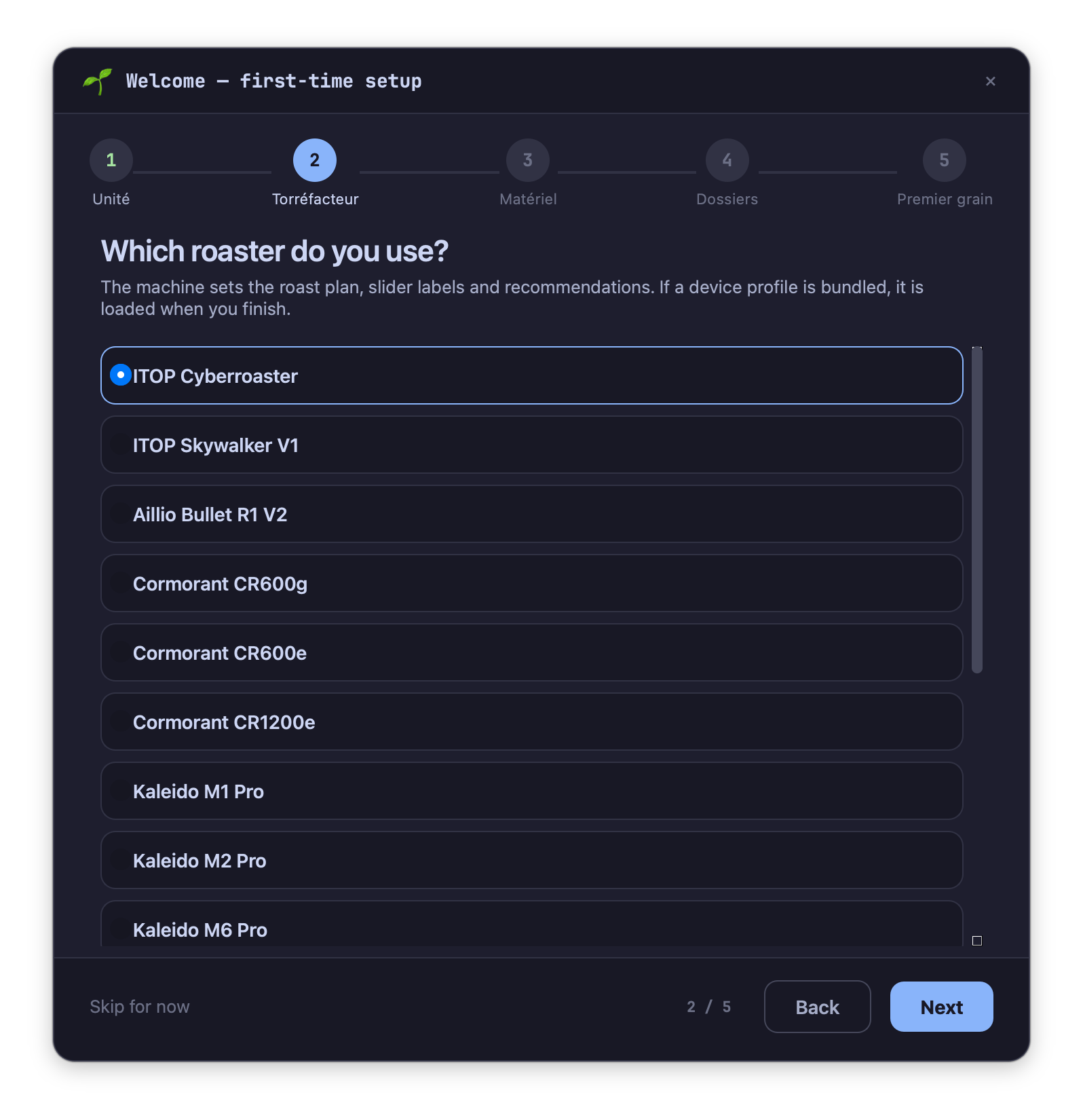
2. Your roaster. Which roaster do you use? This is the most consequential answer in the wizard: the machine determines the roast plan, the slider labels, and the recommendations given during a roast. A recommendation that suits a high-thermal-mass drum is wrong on a radiant machine, so TilauScope needs to know which type it is. Type in the search field to narrow the list. Each roaster shows how it can be connected: USB cable, Bluetooth, Network, Probe kit when its temperatures come from added probes, or Manual setup when TilauScope has no ready-made setup for it. Under the list, the capacity, the heating and the first batch size are read from the roaster itself; there is nothing to type.
3. Connection. How is your roaster connected? Choose the link you use. The choice sets everything that makes the roaster measure and obey: the sliders and the commands they send, the command sent by each milestone button, the probes and how their readings are smoothed. When Artisan knows the roaster’s energy loads, they are filled in as well: without a meter, they give the roaster’s estimated energy — see Energy. Setting up another roaster never keeps the previous one’s loads; setting up the same roaster again keeps the loads it has. None of it has to be entered by hand. Artisan’s Config → Machine and Config → Machine Name menus are no longer offered: this step replaces it, and TilauScope → Redo First-Time Setup… is the way to change roaster later.
- USB cable — when a single USB port is plugged in, or the port used last time is still there, it is chosen for you. Otherwise pick it in the list; Scan again refreshes it after plugging the cable back in.
- Bluetooth — switch the roaster on: once it is found nearby, it is selected for you. Keep it within a few metres of the computer.
- Network — type the roaster’s address (a name or an IP address), shown in its network settings. The address you used before is offered again; otherwise the roaster’s usual address is filled in. The roaster and the computer must be on the same network.
The step is skipped when there is nothing to ask, for example for a roaster with a single probe kit. A roaster that takes no command from TilauScope is set to read-only: it records, and the assistant shows the settings to make by hand.
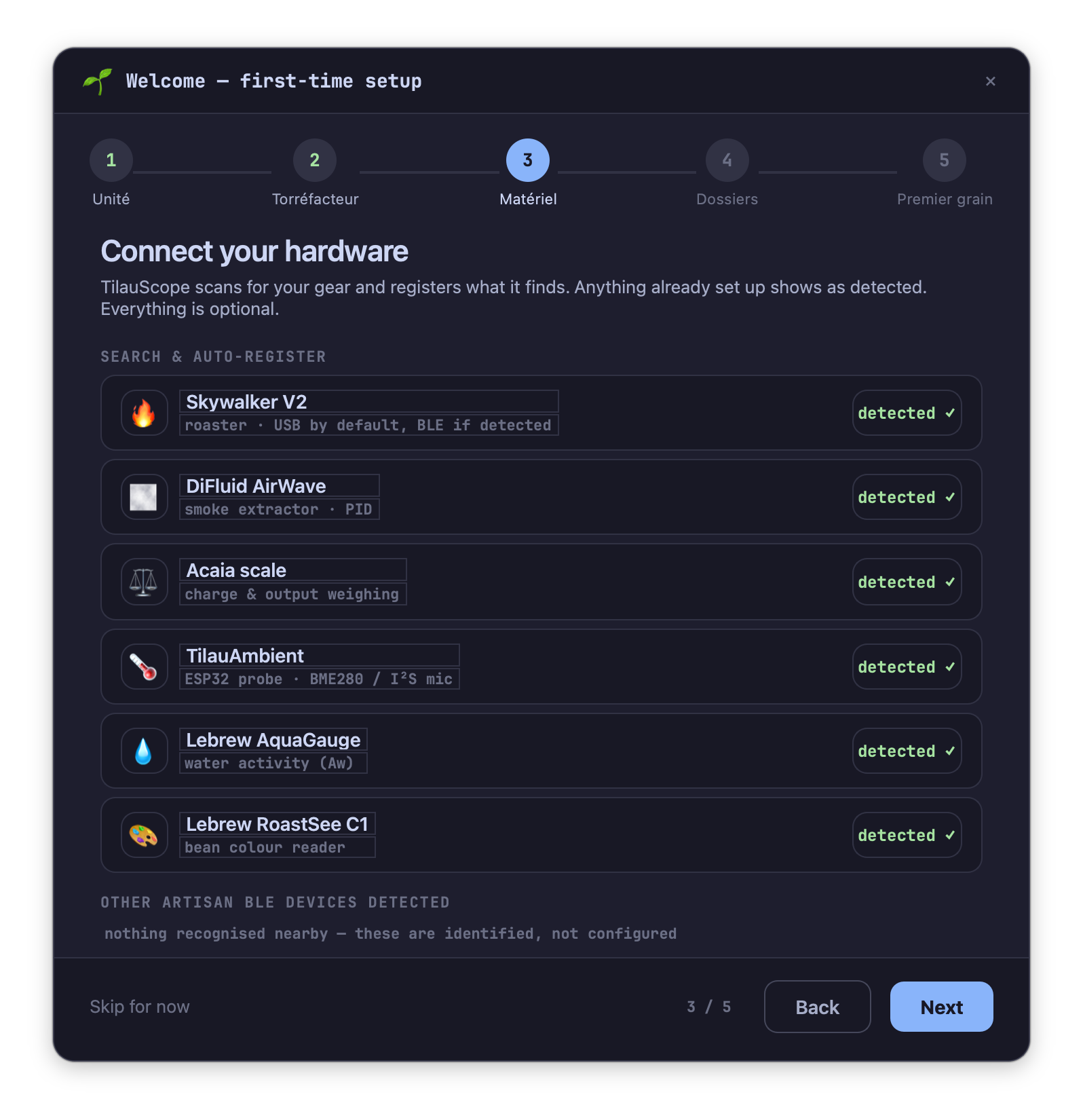
4. Hardware. Connect your hardware → Search & auto-register. TilauScope scans for gear and registers what it recognises, so you don’t have to configure Artisan’s device slots by hand. Each device found is named by its role rather than by its Bluetooth identifier — smoke extractor, charge and output weighing, ambient probe, water activity, bean colour reader — so you can tell what you actually have.
Devices that are detected but not supported are listed separately, under Other Artisan BLE devices detected, and labelled recognised · not configured. Nothing is presented as working when it is not.
5. Folders. Where should your files live? Choose where your BeanCave green-bean database and your roast logs are stored.
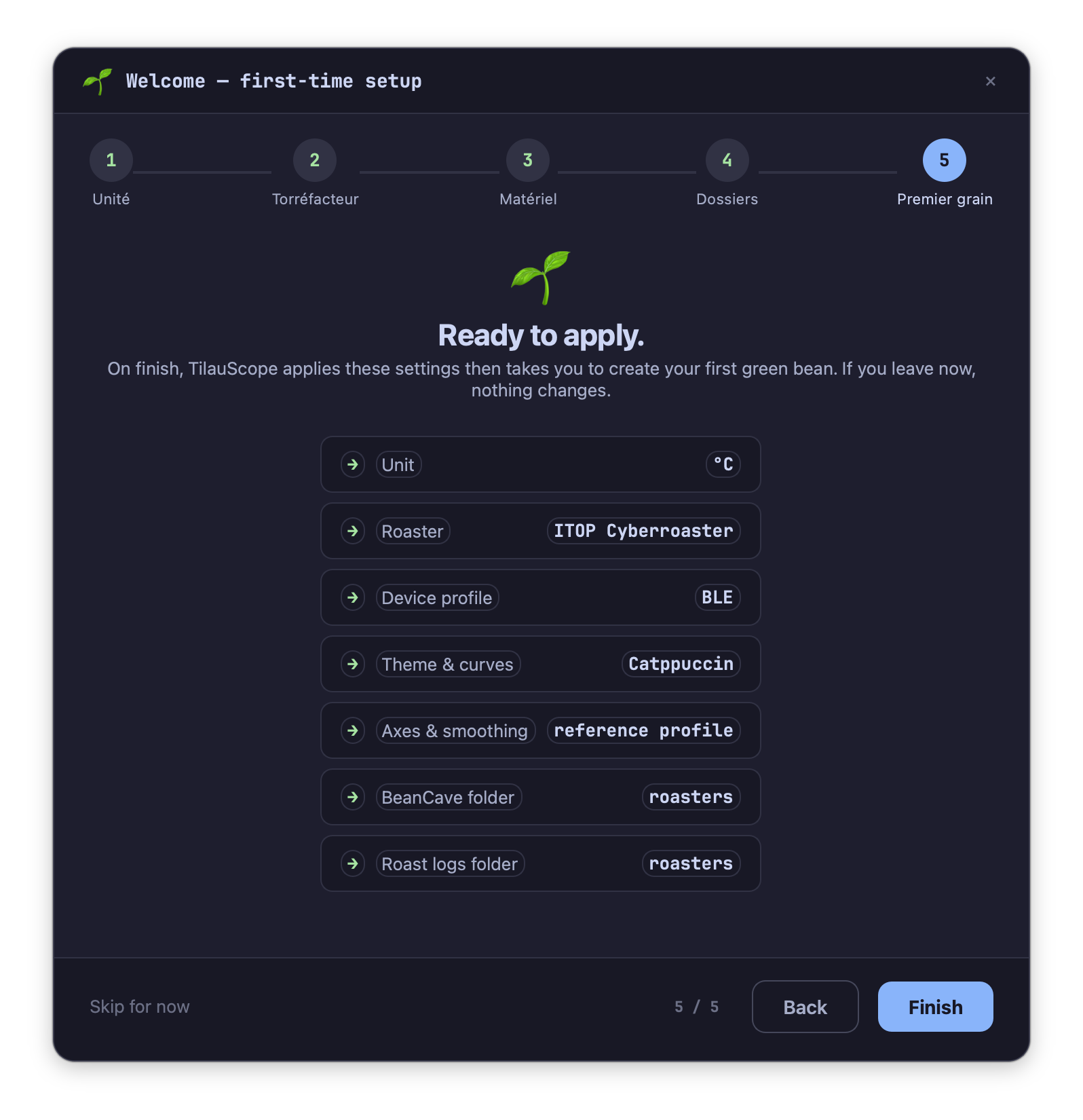
6. Review. Ready to set up. The wizard lists what will be set — roaster and link, port or address, sliders, milestone buttons, capacity, first batch, theme, folders — and what is kept as it is: your alarms, sounds, batch counter and paired devices. Nothing is written until Finish. The wizard can be left at any point with Skip for now, so roasting can begin immediately.
!!! warning Finishing the wizard replaces the roaster’s sliders, milestone commands and command buttons, and the theme. If you have already tuned those by hand, replaying Redo First-Time Setup… will overwrite them again.
Guided or Expert
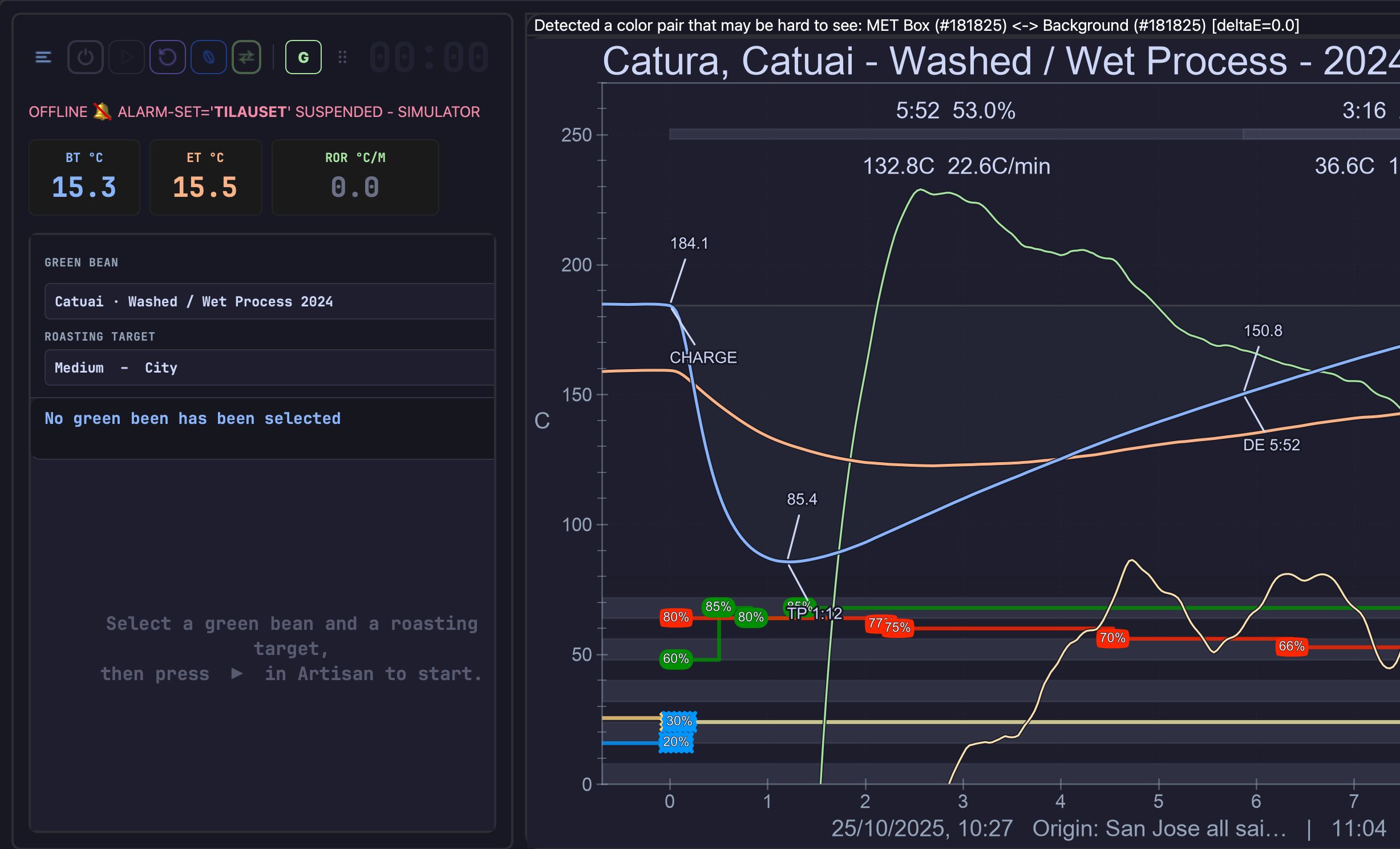
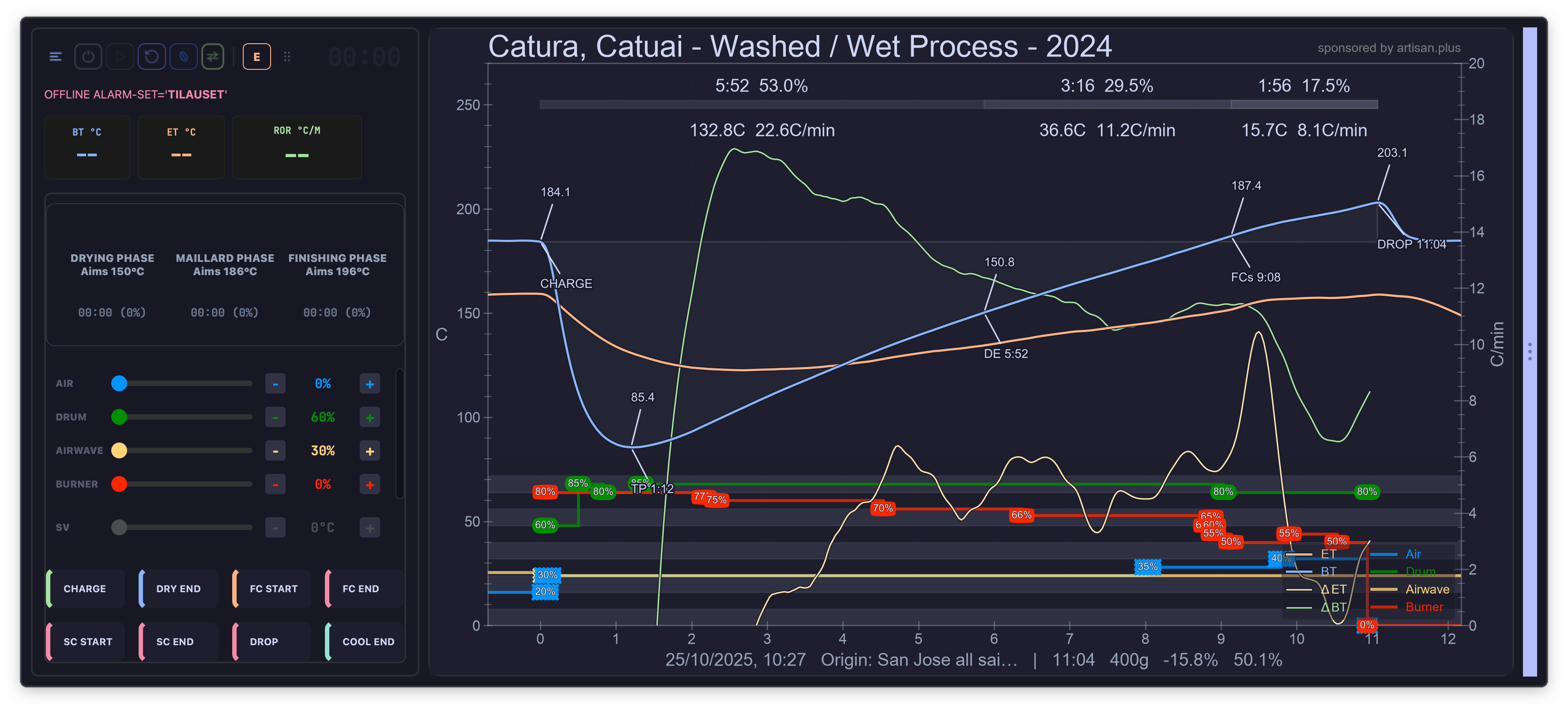
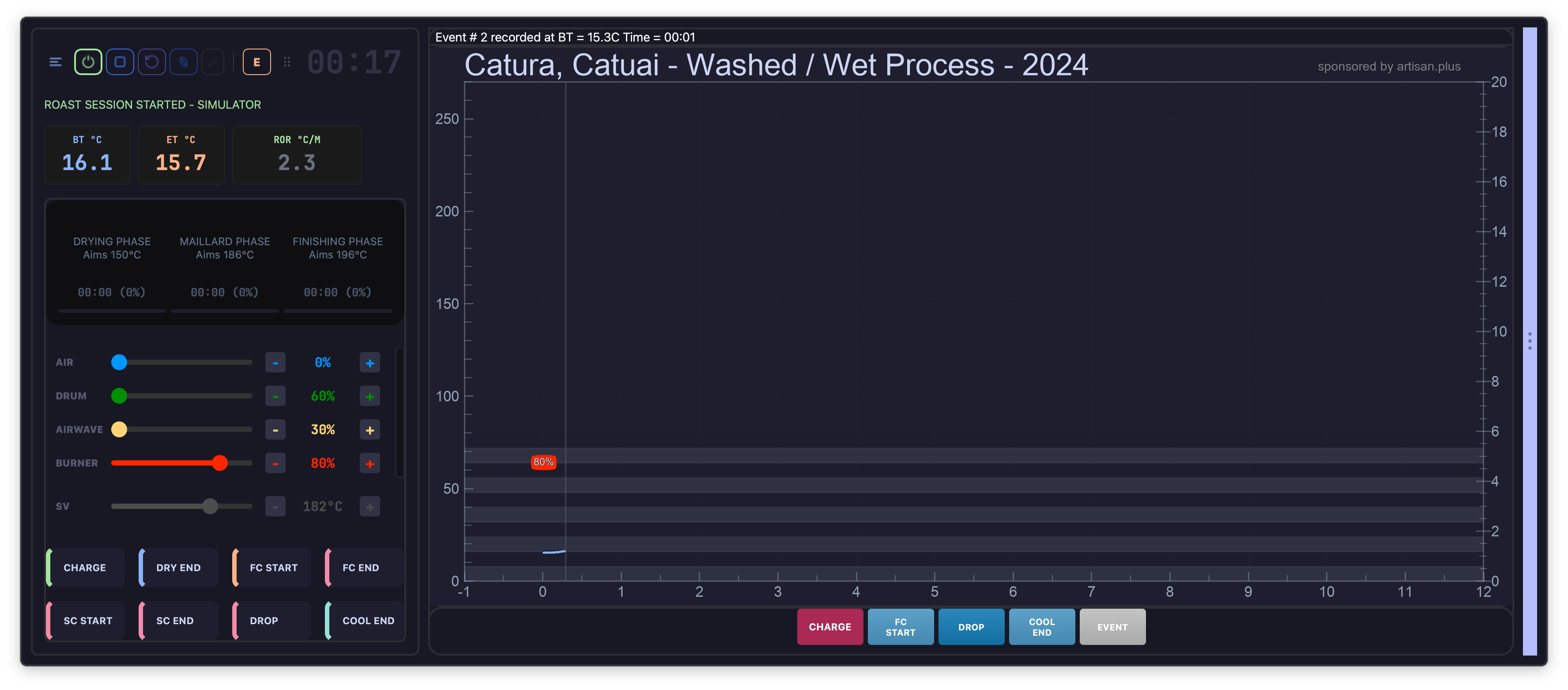
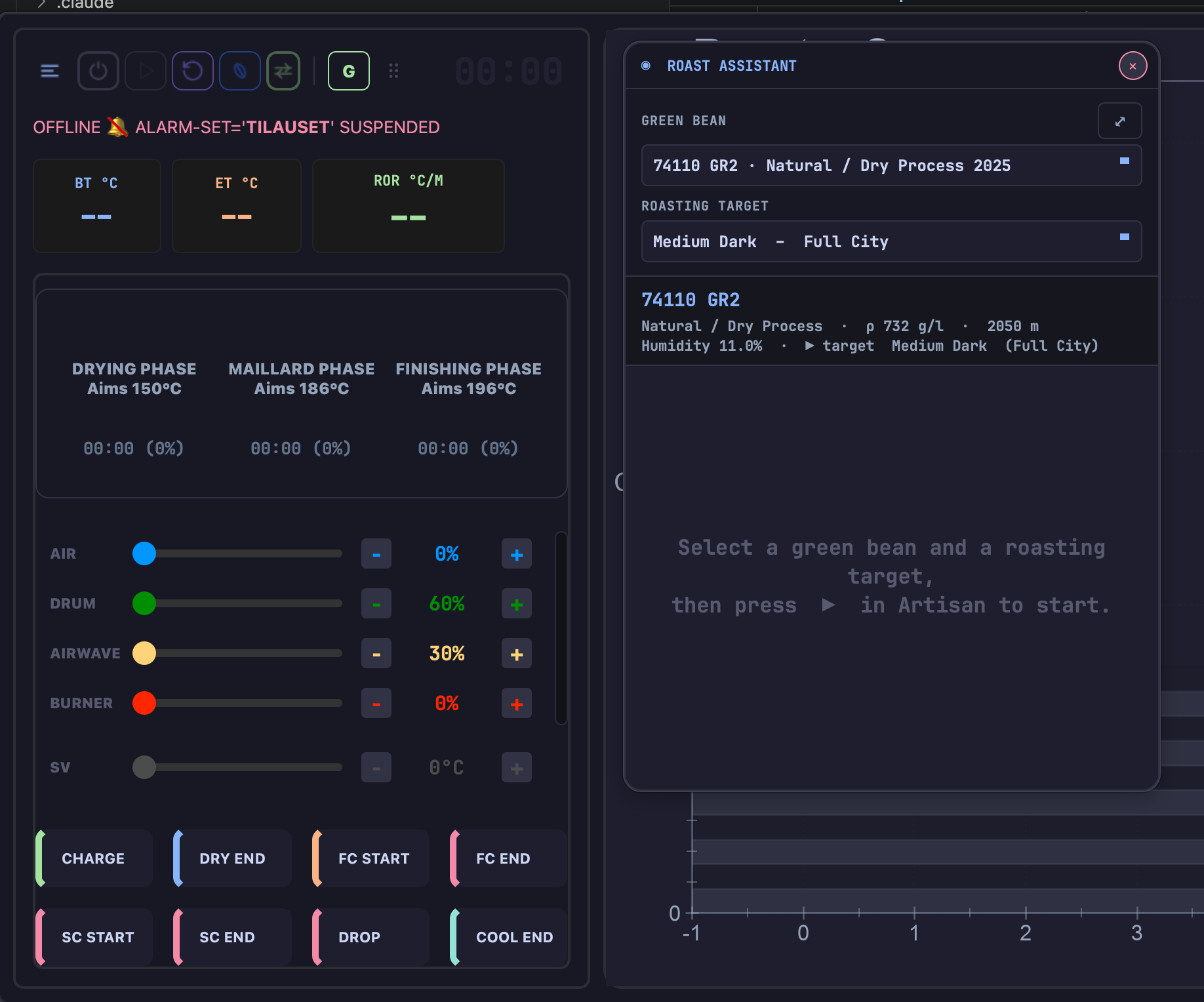
TilauScope runs at one of two levels, and a single pill in the panel header switches between them: G for Guided, E for Expert. Click it to toggle.
Guided is the default. The roast assistant is docked in place of the control panel, so there is a single place to look while roasting. The graph gains a Coach view that reduces the roast to one recommendation plus a phase verdict.
Expert returns the interface to its full form: the control panel comes back, and the assistant steps aside entirely.
!!! warning “Alarms are suspended in Guided, and while the assistant guides” In Guided — and in Expert while the roast assistant is running — the alarm actions you configured in Artisan do not fire. This is deliberate — it stops two sources of instructions from contradicting each other while you roast — but it means an alarm you rely on will stay silent. The status line tells you which regime is active as soon as one alarm is enabled: 🔕 ALARMS SUSPENDED or ALARMS ACTIVE. Switch to Expert and leave the assistant off if you want your own alarms back.
Once a roast is recording, the switch only works one way: you can leave Guided for Expert, but Expert stays Expert until the roast ends — the pill is greyed out. A roast started without guidance has no plan behind it, so there is nothing for the assistant to follow mid-way. Leaving Guided mid-roast ends the guidance for that roast: the plan is not held in reserve, and the roast finishes on your own reading of the machine.
The assistant belongs to Guided. There, it can be docked in place of the control panel or detached into its own floating window, with the ⤢ button in the panel’s own header, and closing the detached window sends it back to the dock with its roast in progress untouched. Expert has no assistant: taking the level up to Expert takes the panel down, docked or detached, and gives you the control panel back.


Settings
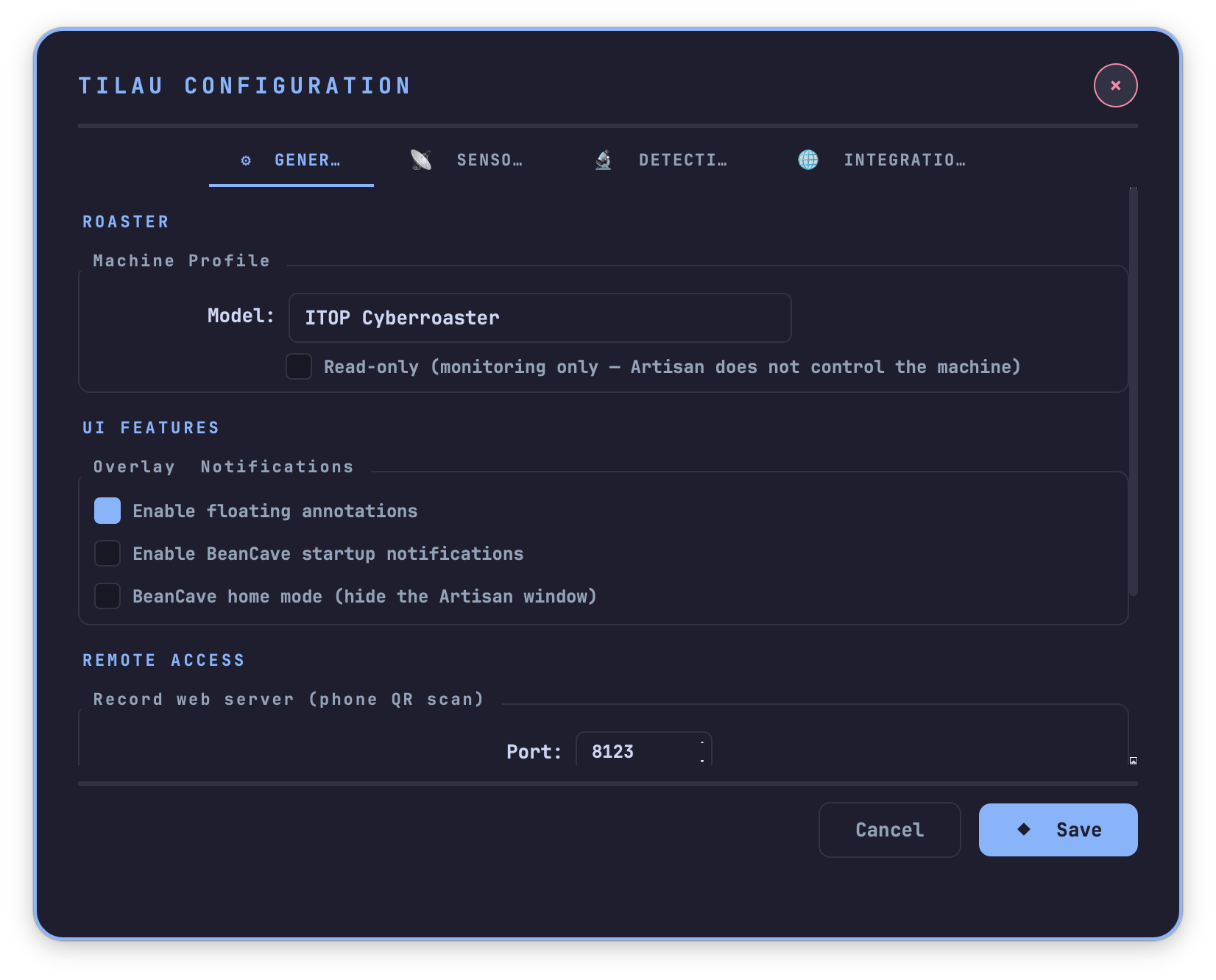
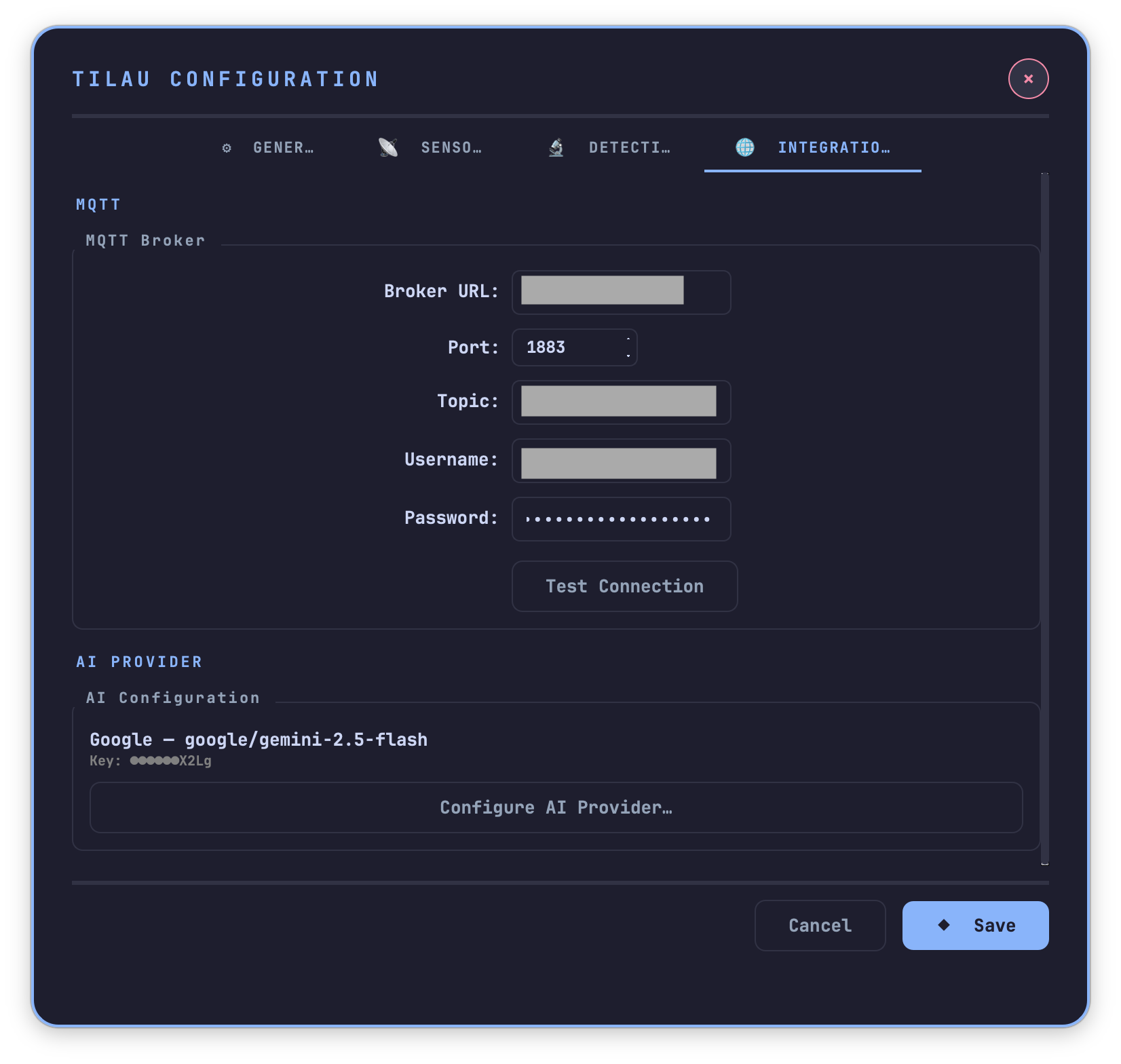
TilauScope → TilauScope Config… groups every fork setting by intent, in seven tabs. The main ones:
⚙ GENERAL — your machine and the interface. Roaster → Machine Profile → Model: changes roaster without replaying the wizard. UI Features turns on floating annotations on the roast graph, and the cleaning reminder shown when TilauScope starts.
🎚 CONTROLS — the names of the machine’s controls, shown on the sliders, buttons, alarms and phone, and the command each milestone sends to the roaster when it is marked.
📡 SENSORS — every coupled device, grouped by role, with Bluetooth scanning running in the background while the tab is open.
🔬 DETECTION — the parameters behind milestone detection (first crack, dry end) and the per-phase thresholds. This is where you make detection match your machine’s behaviour rather than adapting to a generic default.
🌐 INTEGRATIONS — the MQTT broker and the AI provider.
!!! info “Ongoing — BeanCave home mode” ⚙ GENERAL also offers BeanCave home mode (hide the Artisan window), which makes BeanCave the main window. It only takes effect after a restart. It works today, but the full experience is still being built: expect to return to the Artisan window for anything the fork does not cover yet.
See Configuration for every setting in this dialog, tab by tab.


Updates
TilauScope updates itself. When a new version is available you get ⬇ Download & Install, a progress view while it downloads, and then 🛠 Install Now & Quit once it is ready. Later postpones the whole thing — an update never interrupts a roasting session in progress.

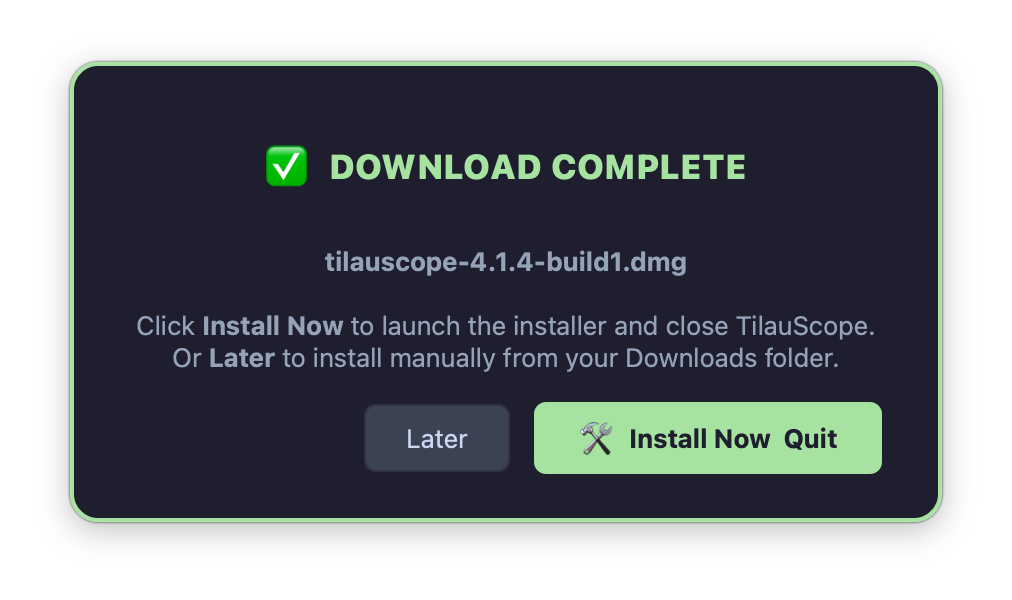
Before it is offered, the downloaded installer is checked against the checksum published with
the release. A file that does not match is deleted and the download is reported as failed —
try again later rather than installing it.
An installer published without a checksum is not offered: download it from the releases page
instead. The download is written under a temporary .part name and takes its real name only once
verified, so an interrupted download never leaves a truncated installer in your Downloads folder.
If the installer cannot be launched automatically, TilauScope reports it and gives the path to the installer, rather than failing silently.
The first time a new version is opened, a What’s new screen summarises what changed. It appears once per version.
Opening TilauScope twice
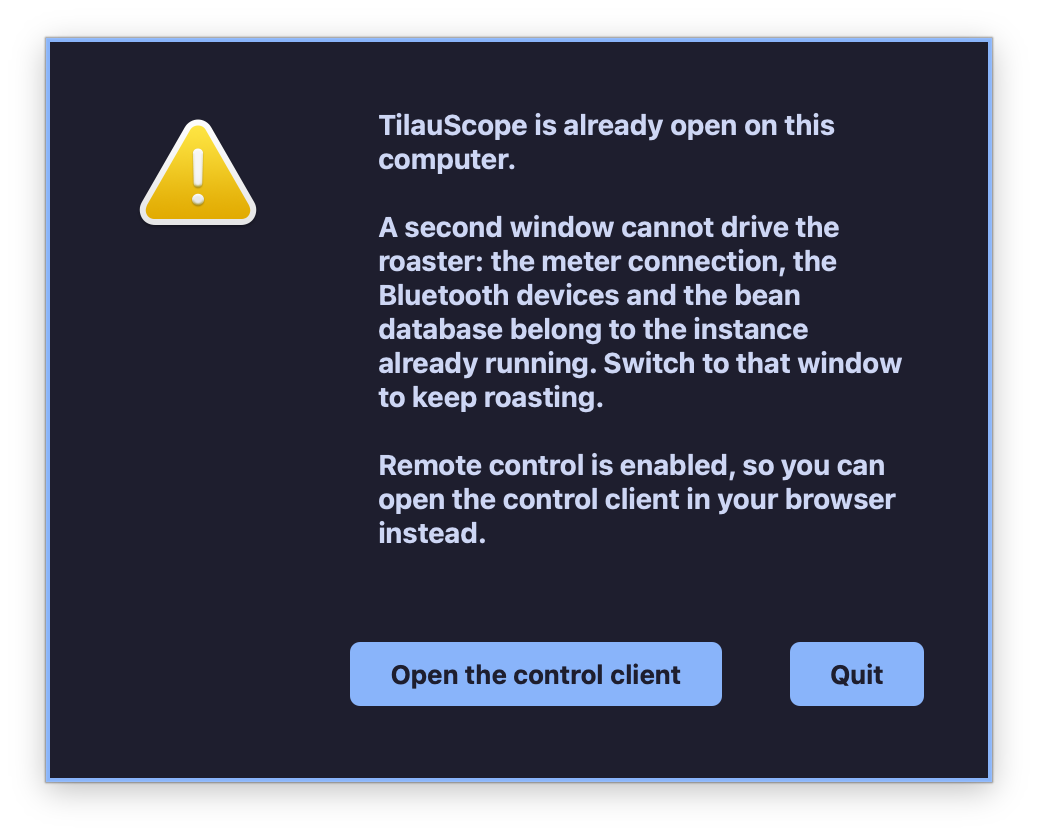
TilauScope runs as a single copy on a machine. Opening it again while it is already running does not give you a second window: it tells you a copy is already open, and offers to close the one you just started.
Only one copy can talk to the roaster. The meter connection, the Bluetooth devices and the green-bean database all belong to the copy already running, and a second one would compete with it for them in the middle of a roast.
If remote control is switched on and the running copy is serving it, the message also offers Open the control client, which opens the piloting page in your browser rather than a second window. See Piloting from a phone.
Next
- Your green coffee, from the start: see BeanCave.
- The roasting window itself — readouts, controls, the live column: see The TilauScope window.
- Every setting, tab by tab: see Configuration.
- Preparing a roast — bean, batch size, preheating: see Preparing a roast.
- How the roast plan is built and what it learns from your history: see The roast plan.
- What the assistant reports during a roast: see The guided roast.
- Any unfamiliar term: see the Glossary.