tilauscope_fork
Hardware and peripherals
!!! abstract “Artisan does / TilauScope adds” Artisan does — talks to a roaster, a scale, and whatever generic serial or Bluetooth device its own device dialog can be pointed at.
**TilauScope adds** — recognition of a set of specific devices by name, so pairing one
is a search-and-confirm step rather than a manual device-dialog configuration, plus a
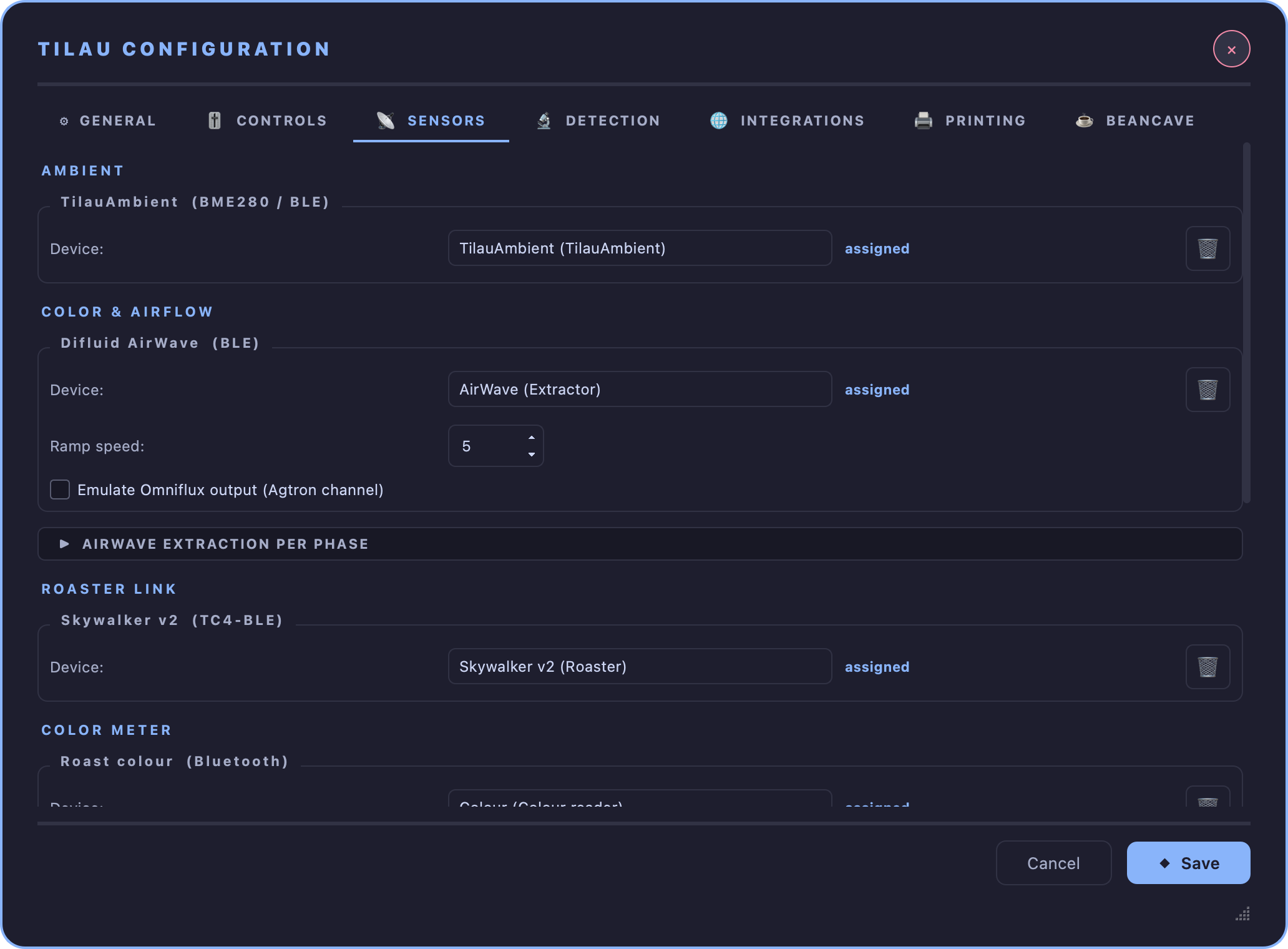
place in **Configuration → SENSORS** to see, add or remove every paired device at once,
and a [Devices](/devices.html) window for what reads the roaster and which extra devices
feed the counters.
Every device fiche below follows the same shape: what it adds, how it pairs, what changes on screen once it is paired, and its known limits. Setup fields for a device live in Configuration; this chapter is the reference for what each device is.
!!! note Pairing any Bluetooth device here can be done from the first-time setup wizard’s Hardware step (see Getting started) or later from Configuration → SENSORS — both use the same scan. A device removed from SENSORS is unpaired immediately.
Roaster link
What it adds. A live, two-way link to the roaster: readings in, control levers out. Set once as the machine profile; everything downstream — the roast plan, the guided recommendations, the slider labels — follows from it.
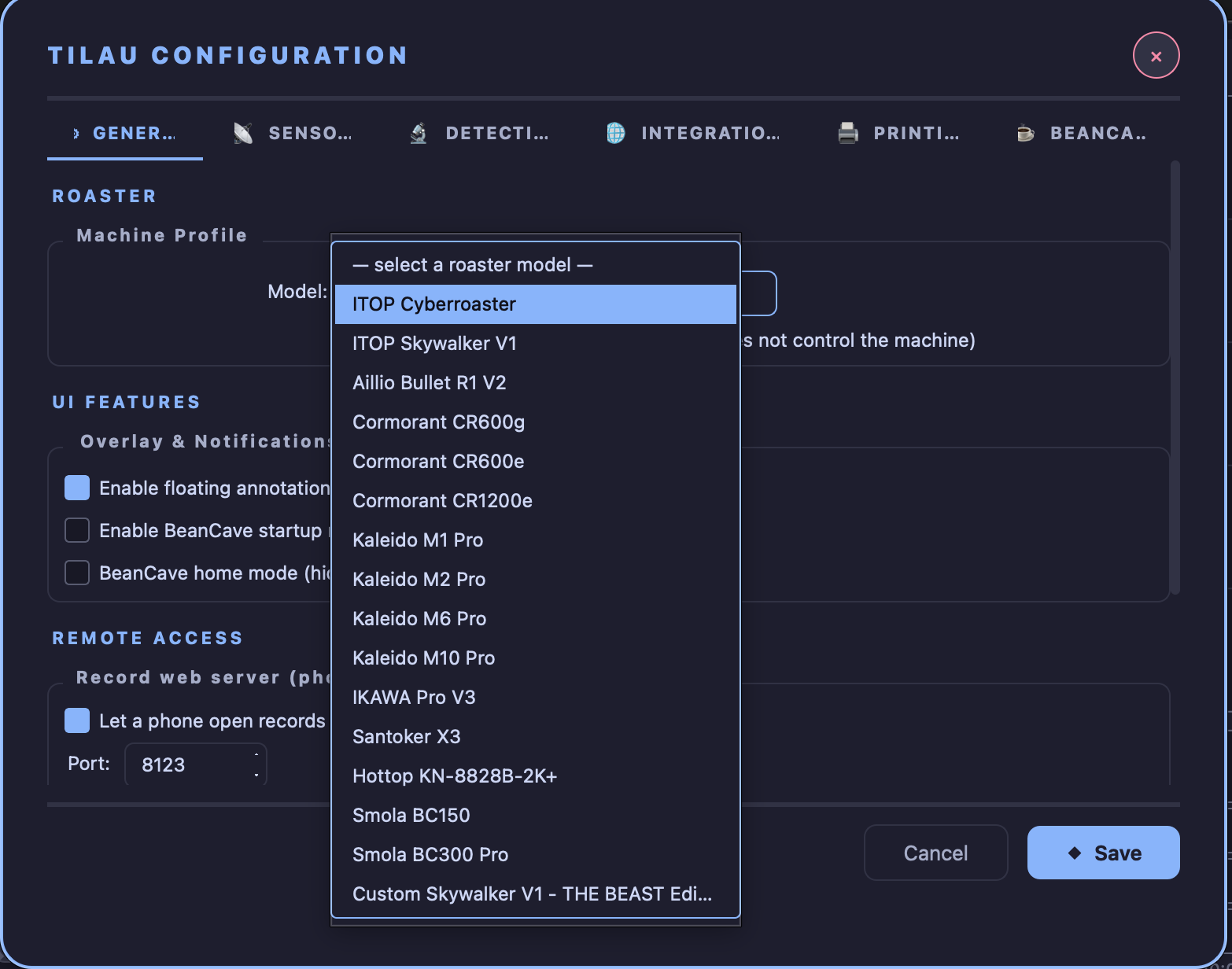
Pairing. TilauScope’s own roaster link (used by the Skywalker range) connects by USB cable by default, and needs no pairing beyond plugging it in and selecting the model. Connecting it over Bluetooth instead is also supported — select the model and pair it like any other Bluetooth device — and TilauScope switches to that link automatically once paired.
What changes on screen. Every control slider follows the machine’s own range and step, and the guided assistant’s recommendations name gestures that machine actually has.
Known limits. A roaster without a supported control link still works in read-only mode: readings only, no sliders, guidance becomes advice rather than a control to move.
If the Bluetooth link drops. The roaster cuts its own burner when it loses the link. TilauScope records the missing readings as gaps in the curve rather than repeating the last value, keeps reconnecting on its own, and says so on screen. Once the link is back, heat is not re-applied: the burner slider shows the roaster’s actual output, and resuming heat or pressing STOP is your decision. A burner that does not confirm it is off when the link opens, or that runs above its command, is also reported on screen.
!!! note “Older Skywalker models” An earlier Skywalker generation connects over a different Bluetooth link than the one described above. It is recognised, but its setup is closer to a generic Bluetooth device than to the guided pairing the current model gets.
AirWave — smoke extractor
What it adds. Extracts smoke and, above roughly 30% output, cools the drum — see The guided roast for how airflow is used through a roast.
Pairing. Bluetooth, found and confirmed the same way as any other paired device.
What changes on screen. The damper slider is claimed automatically for AirWave control the moment it is paired, and stays available even on a read-only roaster, since the extractor is a separate device from the roaster link itself. Every move it makes is recorded on the curve at the exact value sent, marked as the extractor’s own rather than as a gesture of yours.
At a milestone. The roast plan switches the extractor into the mode it has chosen for the phase ahead, and sets the output for that phase. Cooling at DROP is the same mechanism, with a much higher setting.
Protecting the duct. Whenever the extractor is connected and running — during preheat and monitoring as well as during a roast — its inlet temperature is watched, and if the duct goes over its limit the fan is slowed until it comes back down, then returned to the setting it came from. It only ever slows the extractor, never speeds it up, and it does not wait for a roast to be recording. The limit is set per phase and the pace of that correction once for the extractor, both in Configuration → SENSORS.
Known limits. Fan output below its practical minimum has little effect; the useful range starts around 30%. Changing mode makes the extractor briefly adopt that mode’s own default speed before the requested speed is applied — a short blip that comes from the device itself, and it is visible at every milestone where the plan changes mode.
Omniflux — colour and crack sensor
What it adds. Reads roast colour and listens for cracks acoustically, feeding automatic first-crack marking and the after-the-roast colour record.
Pairing. Two distinct paths exist, and they behave differently:
- A genuine Omniflux unit connects over a wired sensor link and needs its channels set up once in Artisan’s own generic sensor configuration, matched to a specific register layout — this is the one device in this chapter that is not set up from Configuration → SENSORS. TilauScope detects it automatically once that configuration matches, and quietly does nothing if it doesn’t.
- An AirWave can be switched into emulating one, from a checkbox in the AirWave’s own SENSORS entry, so a roasting phase feed reaches whatever is listening for it without a second physical sensor.
What changes on screen. Colour readings and crack detection feed the same milestones and records as a real Omniflux, whichever path supplies them.
Known limits. The wired setup path has no TilauScope screen of its own — it depends on Artisan’s generic sensor configuration being entered correctly, with no on-screen confirmation if it is not.
TilauAmbient — ambient probe
What it adds. Room temperature, humidity and pressure during roasting (the AMBIENT window), and an acoustic source for automatic first-crack marking.
Pairing. Bluetooth, found and confirmed the same way as any other paired device.
What changes on screen. The AMBIENT window appears during roast preparation; crack detection gains a second possible source alongside Omniflux. Its temperature, humidity and pressure become the room conditions recorded with each roast once chosen as ambient sources — one button in Devices → AMBIENT.
Known limits. This is TiLau’s own probe design — it needs its own firmware installed before it will be found at all, unlike the off-the-shelf devices in this chapter. Its crack-listening sensitivity is a setting of its own, independent of the general first-crack detection settings in Configuration → DETECTION.
Bluetooth scale
What it adds. Live weight capture wherever a weight is entered — batch weight, stock, brew dosing — instead of a typed approximation.
Supported scales. Acaia scales, the Decent Scale (and Half Decent Scale) and the Bookoo Themis Mini. Acaia is the scale TilauScope is developed and tested with. Decent and Bookoo support is built from each manufacturer’s published Bluetooth protocol and has not yet been confirmed on the scales themselves.
Pairing. Bluetooth, found and confirmed the same way as any other paired device, in the Scale group of Configuration → SENSORS. The list shows every supported scale found nearby, without naming its brand; when several are in range, each is told apart by its identifier. The scale paired there is the one every weight capture reads.
If a Decent or Bookoo scale misbehaves. Open TilauScope → TilauScope Debug (shown in Expert mode) before anything else, then repeat the steps — open the SENSORS tab, then capture a weight — and choose Save snapshot to file: the snapshot records whether the scale was seen, recognised and connected, and what it sent. Anything that happened before the window was opened is not in it.
What changes on screen. A small floating scale reading appears next to any field that accepts a captured weight; clicking the value writes it in.
Known limits. TilauScope pairs one scale. A second scale, or an Acaia connected by cable, is set up in Artisan’s own device settings.
Niimbot printer
What it adds. Prints roast, bean and sack labels — see Labels and QR.
Pairing. Bluetooth. Once paired, TilauScope remembers this exact printer and reconnects to it directly next time, rather than searching again.
What changes on screen. A live printer status indicator appears wherever a label can be printed.
Known limits. Requires the specific supported Niimbot model — see Labels and QR for paper sizes and constraints.
AquaGauge — water activity meter
What it adds. A direct water activity reading for a coffee’s storage record — see Sacks, stock and conservation.
Pairing. Bluetooth, found and confirmed the same way as any other paired device.
What changes on screen. A floating live reading appears next to the water activity field whenever it is being edited.
Known limits. One coffee at a time — there is no batch-measurement mode.
Colour meter
What it adds. A direct roast-colour reading, feeding the same colour fields as a typed or judged value in the after-the-roast record.
Supported colour meters. The Lebrew RoastSee C1 and the DiFluid Omni. The RoastSee C1 is the meter TilauScope is developed and tested with. Omni support is built from DiFluid’s published Bluetooth protocol, needs Omni firmware V016 or later, and has not yet been confirmed on the meter itself.
Pairing. Bluetooth, found and confirmed the same way as any other paired device, in the Color Meter group of Configuration → SENSORS. The list shows every supported colour meter found nearby, without naming its brand.
What changes on screen. A live reading button appears next to the colour fields in the roast result form once paired. Take the measurement on the meter itself, as usual: the reading appears on the card, and clicking it writes it in. An Omni states whether the sample was whole bean or ground, so its reading goes straight to the matching field; with a RoastSee C1, TilauScope asks which one it is.
The Omni’s scale. Each time it connects, TilauScope sets the Omni to the SCA Agtron standard, the scale of TilauScope’s colour fields. The setting stays on the meter, so the DiFluid app shows SCA values afterwards as well.
If an Omni misbehaves. Open TilauScope → TilauScope Debug (shown in Expert mode) before anything else, then repeat the steps — open the SENSORS tab, open the roast result form, take a measurement — and choose Save snapshot to file: the snapshot records whether the meter was seen, recognised and connected, and what it sent. Anything that happened before the window was opened is not in it.
Known limits. Only the Omni’s roast colour is read: its colour distribution and its particle-size analysis are not. The Omni is a bench colour meter, a different product from Omniflux above, and a different pairing — having one does not register the other.
Network sensors (MQTT)
What it adds. A way to bring in a reading from any sensor able to publish to a shared network broker, rather than only Bluetooth devices TilauScope recognises by name — used today for storage-room humidity tracking, and for a power meter on the roaster or the extractor, which feeds the Energy view.
Pairing. Not Bluetooth: a broker address is set once in Configuration → INTEGRATIONS, then each reading is picked out by naming which topic carries it.
What changes on screen. Wherever a network reading is used, a ⚙ configure control sets or tests which topic and value feed it.
Known limits. Read-only: TilauScope reads a value a sensor publishes, it does not configure or control the sensor itself.
Pairing and scanning, in general
Every Bluetooth device above is found the same way: TilauScope scans continuously in short bursts while a pairing screen is open, so a device can be turned on after the screen is already open and still be found. Configuration → SENSORS lists what is currently paired per device family, with a control to unassign one — done immediately, with no confirmation step to undo it.
Devices seen nearby but not recognised, or recognised but not yet assigned to a role, are listed separately in the same screen, so a device that isn’t working can be told apart from a device that was never found at all.
Alarms: sentences and badges
Alarms appear in two different places, each answering a different question:
- Written as rule sentences, they say when an alarm fires — see The guided roast.
- As colour-coded badges in the live column, they say what just fired — see The TilauScope window.
Next
- Setting up a paired device’s parameters: see Configuration.
- The window controls a paired device ends up driving: see The TilauScope window.
- Any unfamiliar term: see the Glossary.